 openelab.de
 openelab.com






































What is RSView? A Complete Overview for LiDAR Engineers
Download Resource: RSView v4.3.11 User Guide (PDF) - Complete technical documentation for RoboSense LiDAR configuration and point cloud analysis.
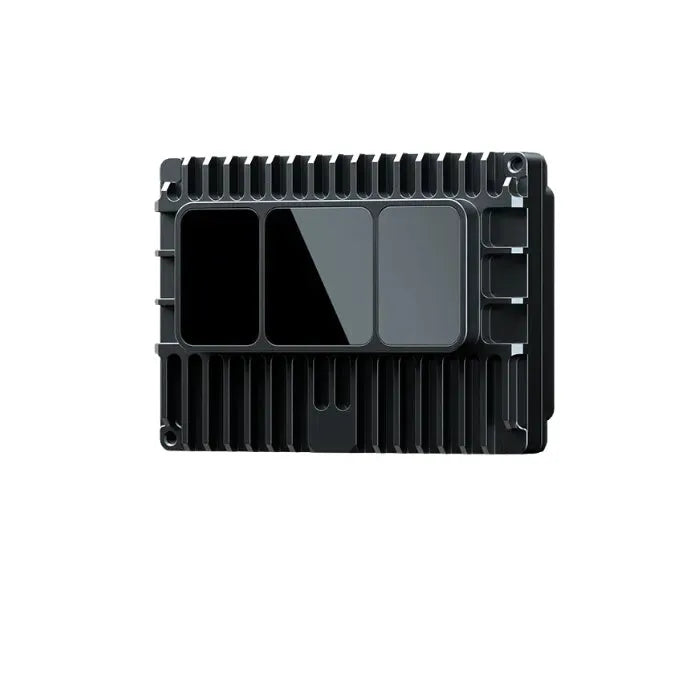
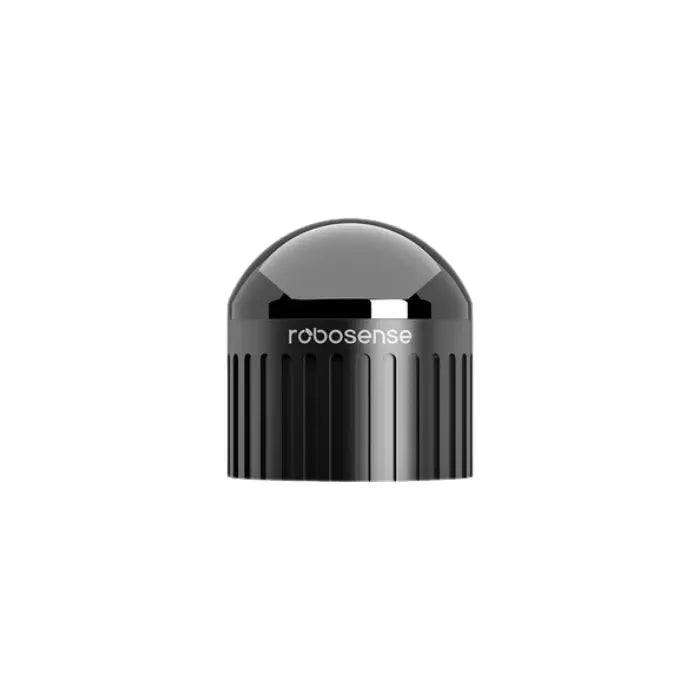
RSView is the official configuration and visualization software developed by RoboSense for their line of LiDAR sensors, including the RSM1, RS128, and RSBP models. Designed for autonomous driving developers, robotics engineers, and 3D perception researchers, RSView v4.3.11 serves as the primary interface for real-time point cloud streaming, PCAP file analysis, and sensor calibration.
This powerful desktop application enables users to connect directly to RoboSense LiDAR hardware, visualize 3D point cloud data in real-time, and export captured data in multiple industry-standard formats including CSV, LAS, PCD, and PCAP. Whether you're debugging sensor placement in autonomous vehicles or analyzing environmental mapping data, RSView provides the essential toolkit for RoboSense LiDAR integration.
RSView Technical Specifications and System Requirements
Before diving into configuration, ensure your system meets the requirements for optimal performance with high-density point cloud data:
| Specification | Requirement |
|---|---|
| Supported LiDAR Models | RSM1 (MEMS), RS128 (Mechanical), RSBP, RS-Lidar-16, RS-Lidar-32 |
| Operating System | Linux (Ubuntu 16.04/18.04/20.04), Windows 10/11 |
| Network Protocol | UDP (MSOP/DIFOP packets), Multicast support |
| Default Ports | MSOP: 6699, DIFOP: 7788 |
| Data Formats | XYZIRT (X, Y, Z, Intensity, Ring, Timestamp) |
| Export Formats | CSV, LAS, PCD, PNG (screenshot), PCAP |
| Coordinate System | Right-hand coordinate system (RoboSense standard) |
Key Features: Why Engineers Choose RSView for RoboSense Configuration
1. Dual Mode Operation: Real-Time and Playback
RSView supports both Live Sensor Stream mode for online LiDAR connection and PCAP file playback for offline analysis. This dual capability allows engineers to debug sensor configurations in the lab using recorded data before deploying to vehicles.
2. Advanced Sensor Calibration
The software provides comprehensive calibration options including:
-
External file calibration: Import
limit.csv(range limits) andangle.csv(vertical/horizontal angle corrections) -
Coordinate transformation: Configure sensor position (X, Y, Z) and orientation (Pitch, Roll, Yaw) with real-time visualization updates
-
DIFOP packet parsing: Automatic extraction of internal calibration parameters from mechanical LiDARs
3. Multi-Frame Point Cloud Analysis
Unique to RSView is the TF (Time Frame) stacking feature, allowing visualization of up to 10 consecutive frames simultaneously. This is crucial for analyzing temporal consistency in dynamic environments and understanding scan patterns across multiple rotations.
4. Intelligent Data Cropping and Filtering
RSView offers three distinct cropping methods for data analysis:
-
Sequential cropping: Filter by point ID ranges (e.g., analyze points 10,000-20,000)
-
Channel selection: Enable/disable specific laser channels (ring filtering)
-
Spatial cropping: Define 3D bounding boxes (cuboids) to isolate regions of interest
5. Comprehensive Data Export
Engineers can export point cloud data in formats compatible with industry-standard tools:
-
LAS format: For geographic information systems (GIS) and CloudCompare
-
PCD format: For Point Cloud Library (PCL) processing
-
CSV format: For spreadsheet analysis and custom algorithm development
How to Configure RoboSense LiDAR with RSView: Step-by-Step Guide
Step 1: Sensor Type Selection
Launch RSView and select File → Sensor Type and Configuration. Choose your specific RoboSense model from the dropdown (RSM1 for MEMS-based solid-state LiDAR, RS128 for 128-line mechanical LiDAR, etc.).
Pro Tip: Check "Show this dialog when open sensor" to ensure proper configuration every time you connect hardware.
Step 2: Network Configuration
For online LiDAR connection:
-
Navigate to the network configuration toolbar
-
Set MSOP Port to 6699 (data packets) and DIFOP Port to 7788 (device information packets)
-
For multicast setups, enter your Host IP (local machine) and Group IP (multicast group)
For PCAP file analysis:
-
Use the PCAP-specific network dialog
-
Specify ports only if the file contains multiple LiDAR streams
-
Enable "VLAN Layer" if your capture includes VLAN tags
Step 3: Coordinate System Alignment
In the Sensor Position section, input your LiDAR's mounting position relative to the vehicle coordinate frame:
-
Translation: X (forward), Y (left), Z (up) in meters
-
Rotation: Pitch (forward tilt), Roll (side tilt), Yaw (heading) in degrees
RSView uses the right-hand coordinate system, with positive X forward, positive Y left, and positive Z upward.
Step 4: Visualization and Analysis
Once connected, use these essential controls:
-
Color by attribute: Switch between intensity, ring, distance, or height coloring
-
Point size adjustment: Scale from 1-10 for dense or sparse cloud visualization
-
Perspective switching: Pre-configured views (+X, -X, +Y, -Y, +Z, -Z) for rapid orientation
-
Measurement grid: Toggle the reference grid and adjust resolution (default 10m cells)
Real-World Applications and Use Cases
Autonomous Vehicle Development
RSView is extensively used in ADAS (Advanced Driver Assistance Systems) development for verifying LiDAR mounting angles and validating field-of-view coverage. The real-time intensity visualization helps engineers assess reflectivity detection of road markings and traffic signs.
Robotics and UAV Mapping
For drone-based mapping operations, RSView's PCAP playback capability allows post-flight analysis of point cloud completeness. The coordinate transformation feature ensures accurate georeferencing when integrating with IMU/GPS data.
Industrial Automation
Manufacturing facilities use RSView to configure RoboSense LiDARs for obstacle detection and safety zone monitoring. The "Crop Returns" spatial filtering isolates relevant workspace volumes while ignoring background machinery.
RSView Advantages and Limitations
Pros
-
Native RoboSense support: Optimized specifically for RoboSense packet formats (MSOP/DIFOP)
-
Multi-format export: Seamless integration with PCL, CloudCompare, and GIS workflows
-
Calibration flexibility: Supports both factory calibration and custom external correction files
-
Lightweight: Lower system requirements compared to ROS-based visualization tools
Cons
-
Vendor lock-in: Only supports RoboSense LiDAR sensors (no Velodyne, Ouster, or Livox compatibility)
-
Linux-centric: Windows version exists but Linux offers optimal stability for long-term recording
-
Limited post-processing: Basic filtering only; complex algorithms require export to MATLAB or Python
Conclusion: Is RSView Right for Your RoboSense Project?
RSView v4.3.11 remains the definitive tool for RoboSense LiDAR configuration, offering unmatched native support for sensor calibration and real-time visualization. For engineers working exclusively with RoboSense hardware (RSM1, RS128, RSBP), RSView eliminates the complexity of ROS-based setups while providing professional-grade export capabilities for downstream processing.
Whether you're performing initial sensor validation, debugging network connectivity issues, or preparing training datasets for machine learning models, RSView provides the essential bridge between raw LiDAR packets and actionable 3D perception data.
Ready to get started? Download the complete RSView v4.3.11 User Guide below for detailed configuration parameters, troubleshooting tips, and advanced feature tutorials.
Frequently Asked Questions (FAQ)
What is RSView used for?
RSView is the official visualization and configuration software for RoboSense LiDAR sensors. It enables real-time point cloud visualization, PCAP file playback, sensor calibration, and data export in formats like CSV, LAS, and PCD.
How do I connect my RoboSense LiDAR to RSView?
Connect your LiDAR to the same network as your PC, then in RSView select the sensor type (e.g., RSM1, RS128), configure the MSOP port (default 6699) and DIFOP port (default 7788), and click "Open Sensor" from the File menu or toolbar.
Can RSView open PCAP files from other LiDAR brands?
No, RSView is designed specifically for RoboSense LiDAR data formats. It parses MSOP (Measurement Sensor Output Protocol) and DIFOP (Device Information Output Protocol) packets unique to RoboSense sensors.
What data formats can RSView export?
RSView supports exporting to CSV (spreadsheet data), LAS (LiDAR industry standard), PCD (Point Cloud Library format), PNG (screenshots), and PCAP (packet capture).
How do I calibrate my RoboSense LiDAR in RSView?
Use the Sensor Type and Configuration dialog to import external calibration files (
angle.csv for angle corrections, limit.csv for range limits) or manually adjust the sensor position (X, Y, Z) and orientation (Pitch, Roll, Yaw) for coordinate transformation.What is the difference between MSOP and DIFOP ports?
MSOP (port 6699) carries the actual point cloud measurement data. DIFOP (port 7788) carries device information including temperature, serial number, firmware version, and calibration parameters.
Can I view multiple frames at once in RSView?
Yes, use the TF (Time Frame) toolbar setting to stack up to 10 consecutive frames. This feature is available for PCAP playback and helps analyze temporal consistency.
Does RSView work on Windows?
Yes, RSView is available for both Linux (Ubuntu) and Windows operating systems, though Linux typically provides better performance for high-frame-rate applications.
Download Resource: RSView v4.3.11 User Guide (PDF) - Complete technical documentation for RoboSense LiDAR configuration and point cloud analysis.