 openelab.de
 openelab.com



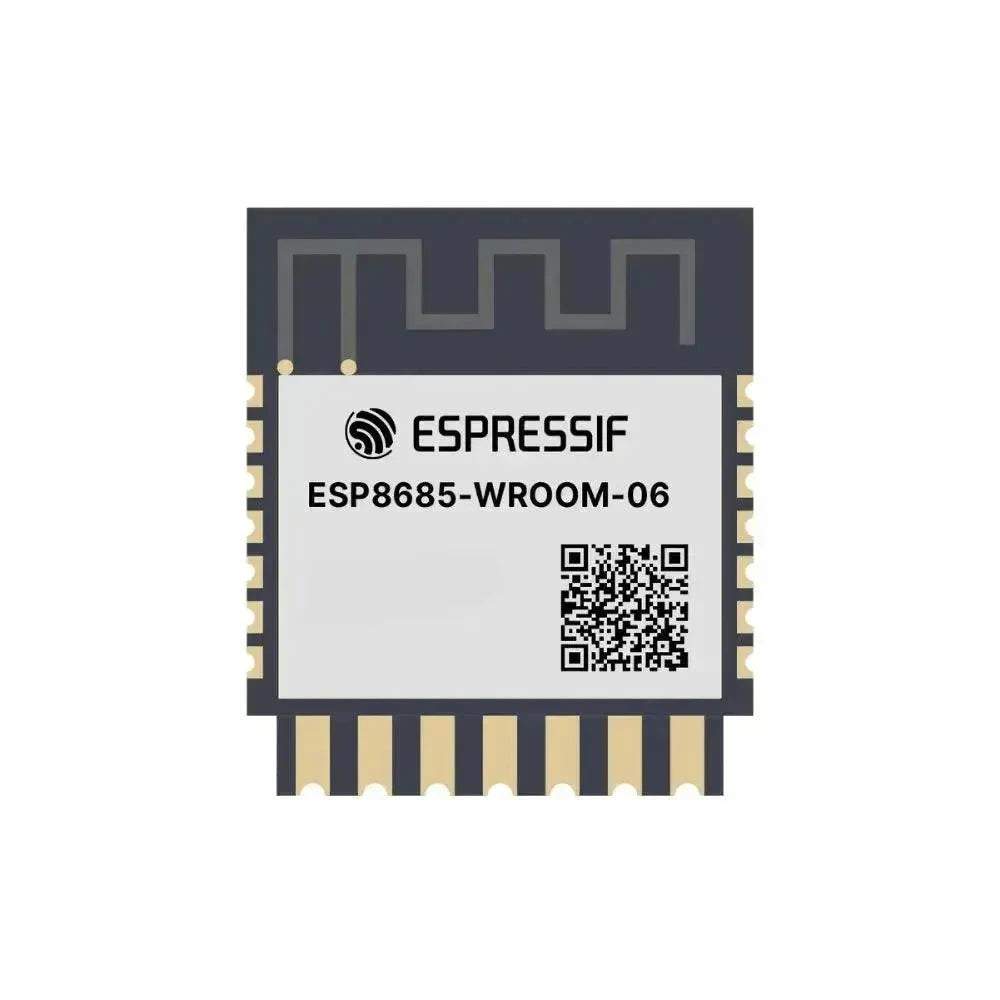














































The Bluetooth configuration system provides three primary options: Enabled, Pairing Mode, and Fixed PIN Value. These settings are managed through an administrative message that sends a Config.Bluetooth protobuf to the device.
Important Note: On ESP32 devices, Bluetooth will automatically be disabled whenever WiFi is enabled. The WiFi configuration always takes priority over Bluetooth.
Bluetooth Configuration Options
Enabled
This option allows you to turn Bluetooth on or off depending on your needs.
Pairing Mode
You can select from several pairing modes:
- RANDOM_PIN – generates a random PIN each time the device starts.
- FIXED_PIN – uses a specific PIN that you define separately.
- NO_PIN – disables PIN authentication completely.
Default Pairing Mode
Screen Attached: If the device boots with a screen connected, the default mode is RANDOM_PIN. Removing the screen later will not change this unless you manually switch to FIXED_PIN or NO_PIN. It is recommended to adjust the pairing mode before disconnecting the screen.
No Screen Attached: If the device boots without a screen, the default mode is FIXED_PIN with the preset value listed below, unless you configure a custom PIN.
Fixed PIN
When using FIXED_PIN, the default PIN is 123456. This value is ignored in other modes. You can set your own six-digit integer through the Bluetooth settings. Tip: Always change the default PIN. Keeping the default value is a serious security risk.
Bluetooth Client Availability Status
Android
All Bluetooth settings are available on Android devices:
- Open the Meshtastic application.
- Navigate to: Three-dot menu (top right) → Radio Configuration → Bluetooth.
Apple
On iOS, iPadOS, and macOS, go to Settings → Device Configuration → Bluetooth.
CLI
All Bluetooth options can be configured using the Python Command Line Interface. Examples are shown below:
| Setting | Acceptable Values | Default |
| bluetooth.enabled | true, false | TRUE |
| bluetooth.mode | RANDOM_PIN, FIXED_PIN, NO_PIN | RANDOM_PIN |
| bluetooth.fixed_pin | integer (6 digits) | 123456 |
- Enable or disable the Bluetooth module
| meshtastic --set bluetooth.enabled true meshtastic --set bluetooth.enabled false |
- Set a fixed PIN
| meshtastic --set bluetooth.mode FIXED_PIN meshtastic --set bluetooth.fixed_pin 111111 |
Tip: The device reboots after each CLI command. To save time, chain multiple commands together:
| meshtastic --set bluetooth.enabled true --set bluetooth.fixed_pin 111111 |
Web
All Bluetooth module settings are also available through the Web User Interface:
- Open the Meshtastic Web UI.
- Navigate to: Radio Config → Bluetooth.