 openelab.de
 openelab.com








































Introduction
The Meshtastic Android application is the comprehensive gateway to the mesh network. This Android application allows you to manage your radio device, send and receive messages, monitor sensor metrics, and view node locations. The Meshtastic Android application features a modern user interface centered around a bottom navigation bar, providing quick access to all primary functions of the mesh network.

The navigation bar of the Meshtastic Android application consists of five main tabs:
- Conversations: Send and receive messages from other nodes on your mesh network.
- Nodes: View a list of all discovered nodes on your channels, including their status and metadata.
- Mesh Map: Display the location of nodes with GPS positions on a map view.
- Settings: Access all device and application configuration options.
- Connection: View the current connection status to your radio device and connect to new devices.
When you first open the Meshtastic Android application, you will land on the Nodes screen. If no radio device is connected, proceed to the Connection tab to establish a connection.

Connecting to Your Radio Device
To begin using the Meshtastic Android application, you will need a device flashed with Meshtastic firmware. Refer to the Getting Started Guide for detailed instructions.
The Meshtastic Android application can connect to your radio device via Bluetooth, Wi-Fi, or USB.
- Navigate to the Connection tab.
- Select the connection method:
-
Bluetooth:
- The application will list previously paired devices and scan for new available devices.
- Select your device from the list to connect.
- If connecting for the first time, you may need to enter a pairing PIN.
- For devices with a screen, the PIN will be displayed on the device.
- For headless devices without a screen, the default PIN is 12345

-
Network (Wi-Fi/Ethernet):
- Devices on the same network as your phone should be automatically discovered.
- You can also manually add a device by entering its IP address.
-
USB:
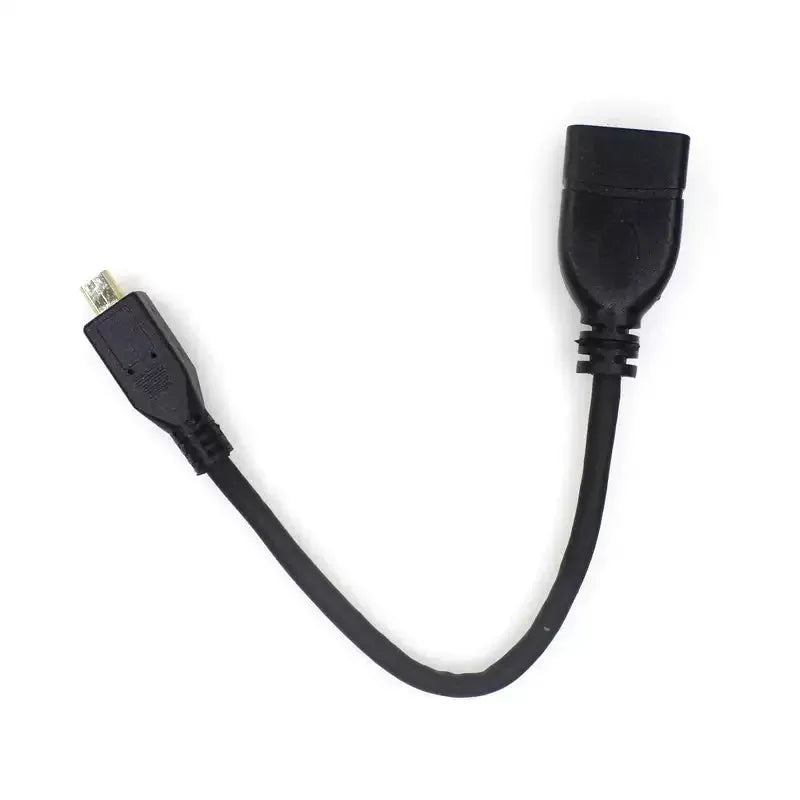
- Connect your device to your phone using a USB OTG cable. It should be automatically detected.
-
Bluetooth:
Tip: If the region is not set on your radio device, a "Set your region" button will appear on the connection screen after connecting. This step is required before you can send messages.
Common Tasks
Set Your Region
If you have not set a region during the initial connection, go to the Settings tab, select LoRa, and choose your region from the Region dropdown menu. This setting controls the frequency range your device uses and must be set according to your location. See the Region Settings Guide for more details.
Change Your Name
To change your user identity on the mesh network, go to the Settings tab and select User. You can set your Long Name and Short Name, which will be displayed to other users on the mesh network.
Set Up a Channel
To manage your channels, you can access the Channel screen in two ways:
- Navigate to the Conversations tab and tap the Floating Action Button with a QR code icon.
- Navigate to the Settings tab and select Channels.
On the Channel screen, you can view and select your current channels, edit channel settings, reset channels to default, generate QR codes for sharing, copy channel URLs, and import channel settings by pasting a URL.
For more details, see the Channel Configuration Guide.
Join a Channel
There are several ways to join a channel:
-
Scan a QR Code:
- Navigate to the Conversations tab and tap the Floating Action Button with a QR code icon, then tap the "Scan" button on the Channel screen.
- Alternatively, go to Settings → Channels and tap the "Scan QR Code" button.
- Open a Shared Link: If a channel is shared via a link (URL), click on the link and choose "Open with Meshtastic Android application".
- Import via URL: On the Channel screen, paste a channel URL directly into the input field to import its settings.
If a QR code or URL opens a webpage instead of the application or "Open with Meshtastic" is not an option:
- Go to Android Settings → Apps → Default apps → Meshtastic → Opening links.
- Ensure you have www.meshtastic.org listed under supported links.
- If you see the option "Open the supported links," make sure it is enabled.
After scanning or opening a link, the application will ask for confirmation to switch to the new channel.
Send a Message
The Conversations tab operates like most messaging applications. It lists your direct messages and channels. Because LoRa is an unreliable transport, the application includes message delivery status icons. These appear to the right of every message you send:

- UNKNOWN: Status not known for this message.
- RECEIVED: Message delivered and acknowledged by the intended node.
- QUEUED: Message waiting to be sent to the mesh network once the device connects.
- ENROUTE: Message delivered to the radio device, but no acknowledgment received yet.
- DELIVERED: Message successfully delivered and acknowledged to the mesh network.
- ERROR: Message not delivered due to error.
Long-press a message or contact for more options, such as replying, copying, or deleting. From the message screen, you can also access Quick Chat options from the overflow menu. This allows you to send predefined messages quickly, which you can customize in the Quick Chat options screen.
View Your Network
The Nodes tab shows all users (devices) connected to the same channel. For each entry, it shows the last time they were active, their location and distance (when available), and their last known power status.
Tap on a node to view detailed information and perform actions such as direct messaging, requesting position, traceroute, sharing contact information, and accessing logs and metrics.
View the Map
The Mesh Map tab provides a real-time view of your network on a map. Each node with a known position is displayed with an icon and its name. You can change map style, manage map layers, and add custom tile sources.
Configuration Options
Most configuration options are located under the Settings tab. Here you can configure various aspects of your device and the application.
Application Settings
- Theme: Switch between light and dark themes or select the system default.
- Language: Select a language for the application’s user interface.
- Provide phone location to mesh network: Use your phone’s GPS to send your location to the mesh network.
- Show Introduction: Opens the introduction slideshow.
- Export/Import Configuration: Backup or restore your device profile.
- Export Data/Range Test: Save logs and range test data to a CSV file.
- Debug Panel: Access the debug panel to view raw packet data and logs.
- Device Database Cache Limit: Set the maximum number of device databases to keep on your phone.
- System Settings: Opens the Android application settings screen for Meshtastic, where you can manage permissions and other system-level settings.
Radio Configuration
In the Settings tab, you can find all radio and module configurations, organized into categories:
- User: Set your name and other user-specific settings.
- Device: Configure device-specific settings such as role, screen, and power options.
- LoRa: Configure LoRa parameters including region, modem preset, and frequency.
- Network: Manage Wi-Fi and Ethernet connections.
- MQTT: Configure connection to an MQTT server, along with many other module-specific settings for features such as Telemetry and Canned Messages.
How to Contribute to Translating the Android Application
Contributing translations to the Meshtastic Android application helps make the project accessible to a global audience. Follow these steps to add your translations through Crowdin:
- Access Crowdin: Visit the Meshtastic project’s Crowdin page at https://crowdin.meshtastic.org.
- Create an Account: Click on "Sign Up" in the top right corner and follow the prompts to create a Crowdin account.
- Navigate to the Project: Once logged in, locate and select the "Android Application" project from the Crowdin dashboard.
- Choose a Language: Select the language you want to contribute translations for and click "Go to Editor" to begin translating.
- Start Translating: In the editor, select a string, enter your translation, and click "Save." Repeat this process for each string you wish to translate.
Your contribution will be reviewed, and upon approval, your translation will be included in the next release of the Meshtastic Android application. Thank you for helping expand the reach of the Meshtastic Android application and making the mesh network accessible worldwide.