 openelab.de
 openelab.com







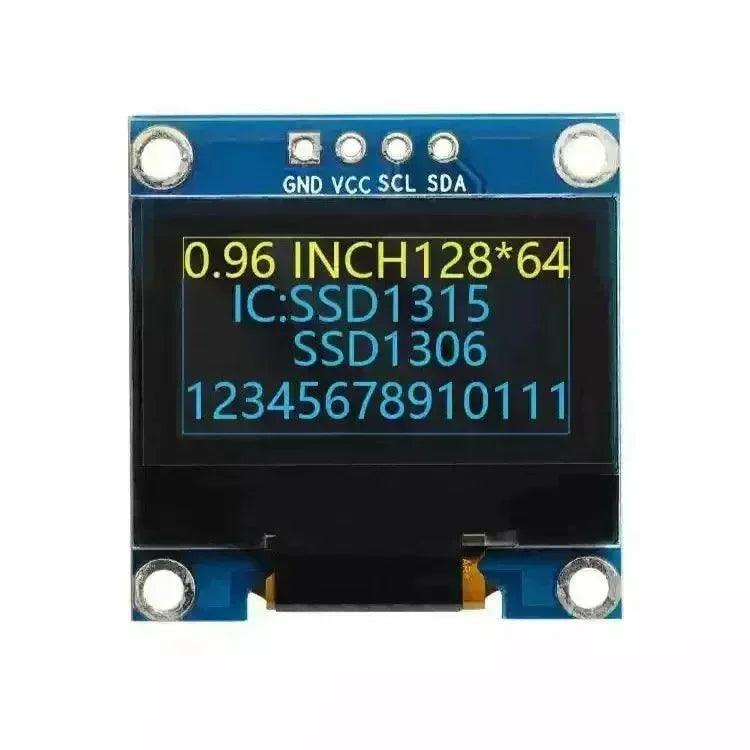



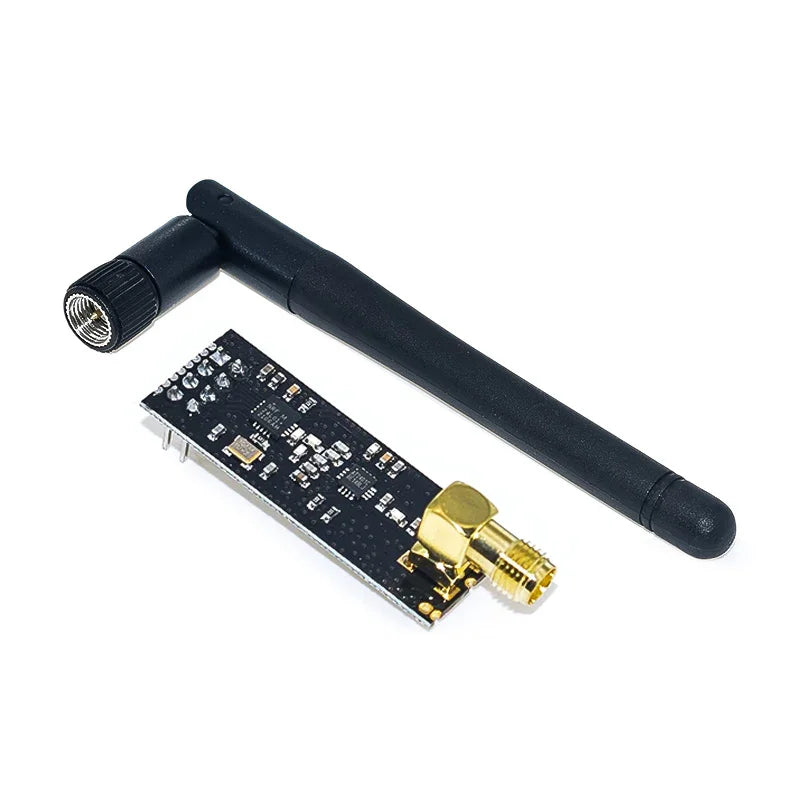
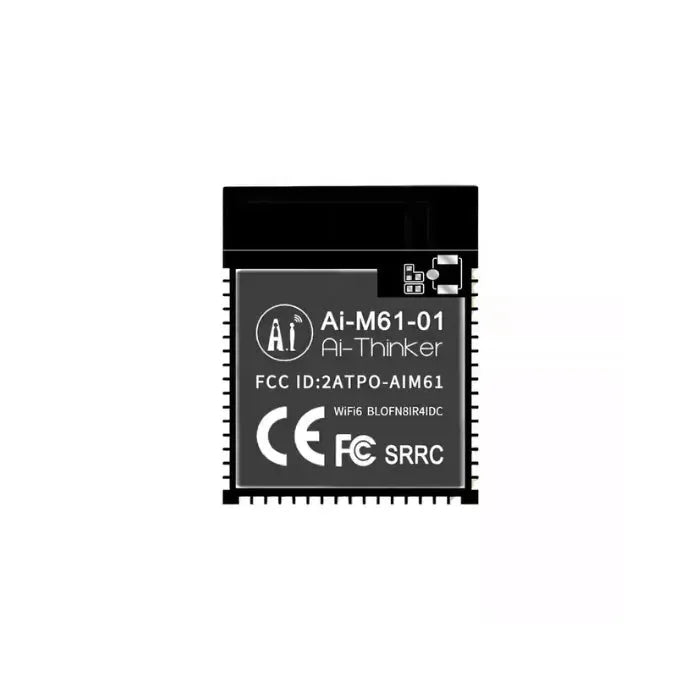



































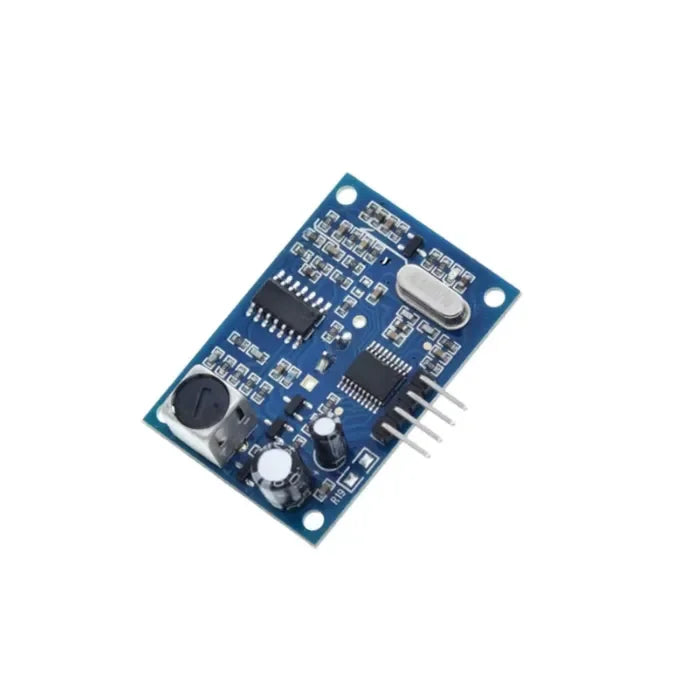


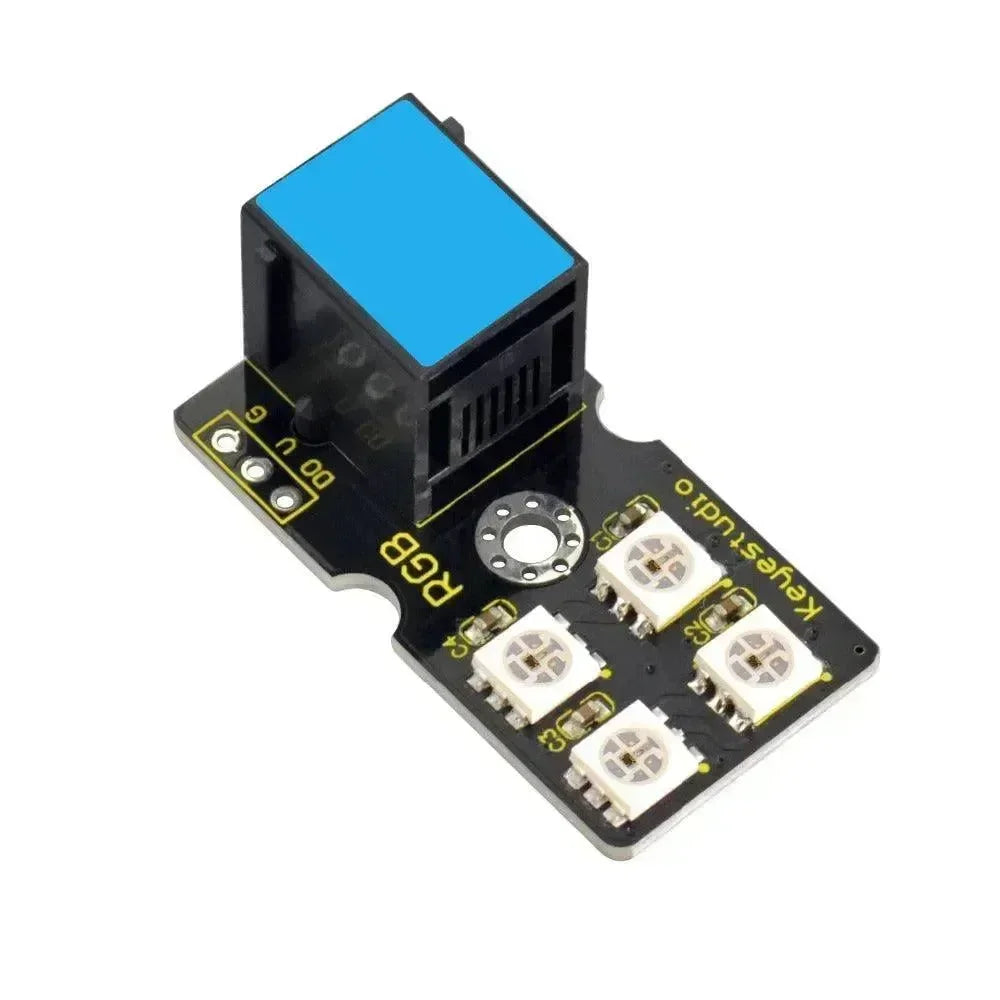
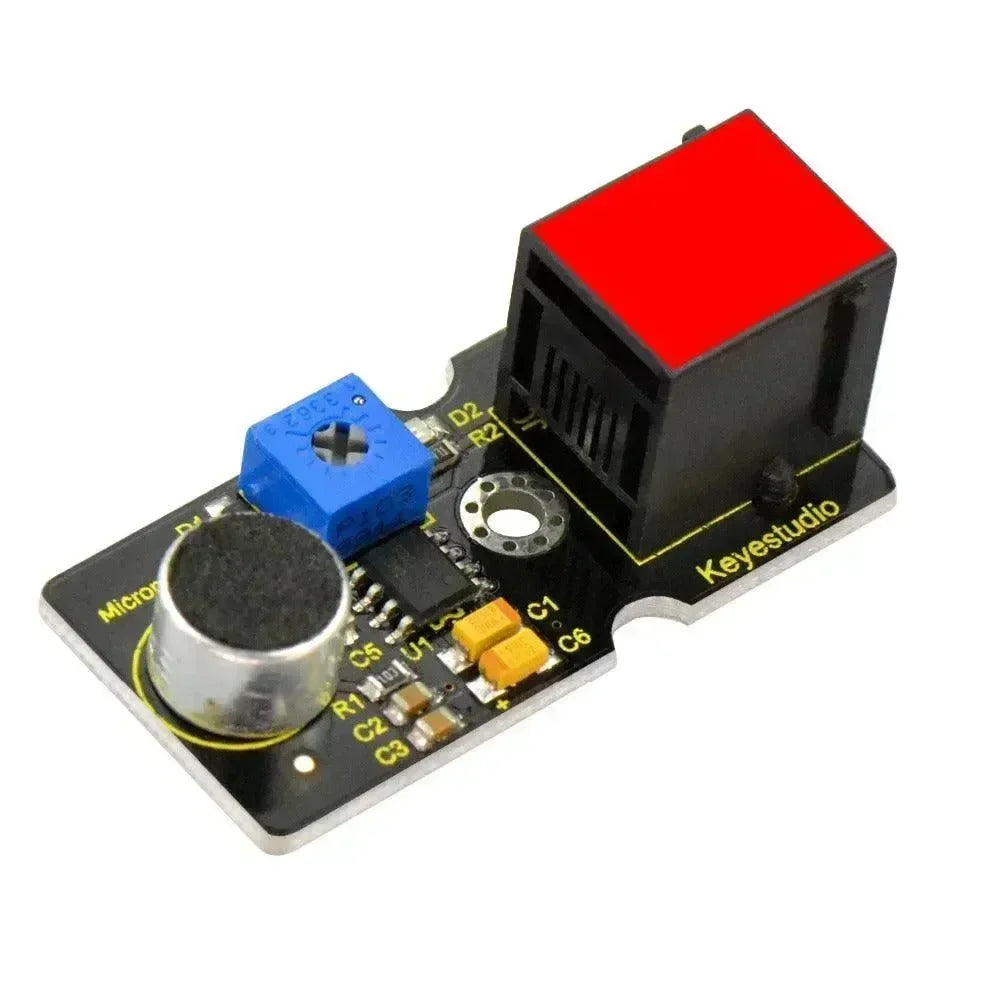


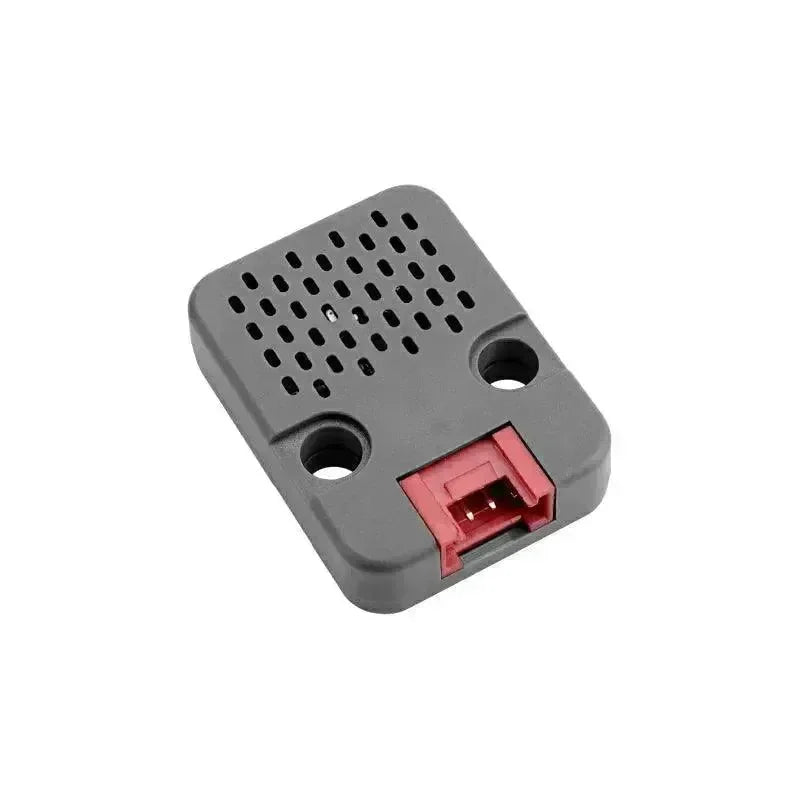
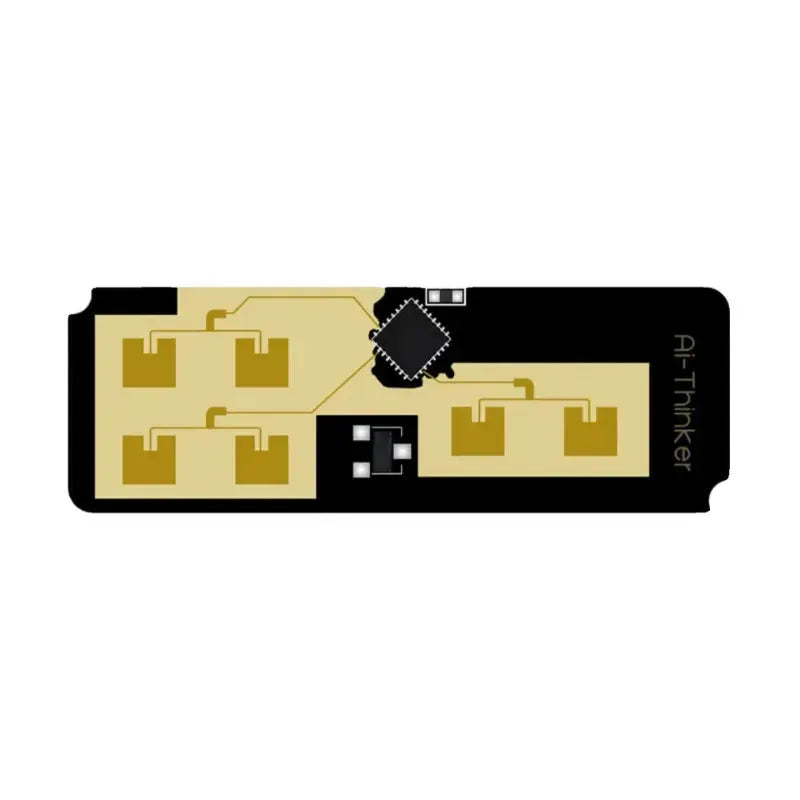

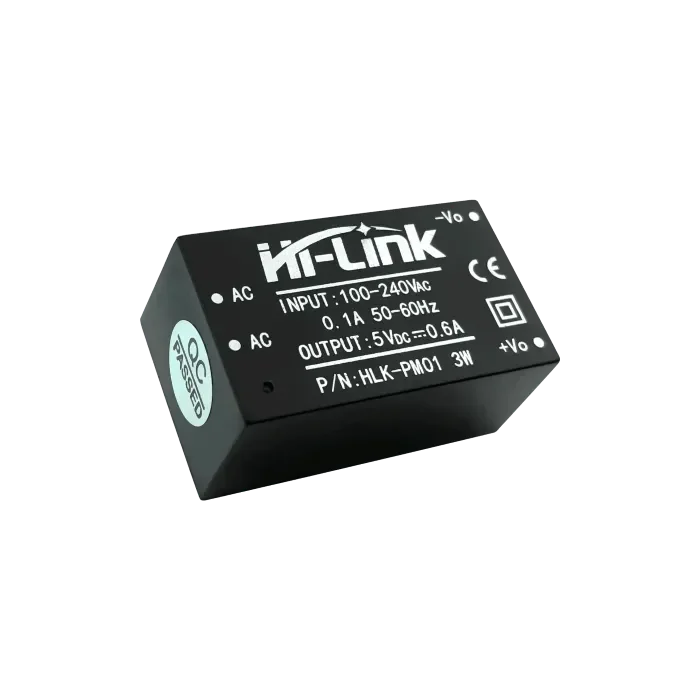









Meshtastic MQTT Module enables LoRa mesh devices to forward packets securely to an MQTT server via Wi-Fi or Ethernet. This allows local Meshtastic Remote Nodes to communicate with Internet-connected users. To use this feature, one or more channels must be enabled as uplink and/or downlink for packet transmission.
The MQTT module configuration includes options such as: Enabled, Server Address, Username, Password, Encryption Enabled, JSON Enabled, TLS Enabled, Root Topic, Client Proxy Enabled, Map Reporting Enabled (with Position Precision and Publish Interval), and Okay to MQTT. Configuration is handled via ConfigModule.MQTT protobuf messages.
MQTT Module Configuration Values
- Enabled: Activates the MQTT module.
- Server Address: Defines the MQTT server. If not set, the default public server is used.
- Username: MQTT server username. Required for custom servers; defaults apply for public servers.
- Password: MQTT server password. Required for custom servers; defaults apply for public servers.
- Encryption Enabled: Determines whether packets are sent encrypted or unencrypted. Unencrypted packets are useful for external systems consuming Meshtastic packets.
- JSON Enabled: Allows sending and consuming JSON packets via MQTT. Useful for integration with JSON-compatible systems.
- TLS Enabled: Enables secure connection using TLS.
- Root Topic: Defines the MQTT root topic for separating multiple Meshtastic LoRa networks.
- Client Proxy Enabled: If true, uses the client device’s network connection to connect to the MQTT server.
Map Reporting Enabled
From firmware 2.3.2+, enabling Map Reporting allows nodes to send periodic unencrypted map reports to the MQTT broker. Reports include:
- Node long/short name and ID
- Position and altitude
- Hardware model and role
- Firmware version
- LoRa region, modem preset, and primary channel name
- Reachability on default channel with known key
- Number of local online nodes (last 2 hours, excluding MQTT)
Map Report Position Precision: Default deviation ~1459m.
Map Report Publish Interval: Default 900 seconds (15 minutes).
MQTT Module Configuration Client
Android
- Open the Meshtastic App
- Navigate: Vertical Ellipsis (3 dots) > Radio Configuration > MQTT
Apple
On iOS, iPadOS, macOS, go to: Settings > Module Configuration > MQTT.
CLI
Using the Python CLI, configuration options include:
| Setting | Values | Default |
|---|---|---|
| mqtt.enabled | true, false | false |
| mqtt.address | string | mqtt.meshtastic.org |
| mqtt.username | string | meshdev |
| mqtt.password | string | large4cats |
| mqtt.encryption_enabled | true, false | false |
| mqtt.json_enabled | true, false | false |
| mqtt.tls_enabled | true, false | false |
| mqtt.root | string | |
| mqtt.proxy_to_client_enabled | true, false | false |
| mqtt.map_reporting_enabled | true, false | false |
Examples:
meshtastic --set mqtt.enabled true
meshtastic --set mqtt.json_enabled true
Note: Devices reboot after each CLI command. Chain commands together when setting multiple values.
Web
All MQTT module configuration options are available via the Web UI.
Access the Default Public Server
Android
- Enable the MQTT Module: Navigate to Radio Configuration > MQTT, toggle Enabled, and tap Send.

Optional: To use your phone's internet connection to send and receive packets over the web, also enable the MQTT Client Proxy slider and skip the Configure Network Settings step below.

- Enable Channel Uplink & Downlink: Navigate to Radio Configuration > Channels > LongFast, toggle Uplink enabled and Downlink enabled, then tap Save and Send.

- Configure Network Settings: Navigate to Radio Configuration > Network, enable Wi-Fi, enter SSID and PSK, then tap Send.

Apple
- Activate the MQTT Module: Go to Settings > MQTT, toggle Enabled, and tap Save.


Meshtastic MQTT Module Configuration provides a secure and flexible way to integrate LoRa mesh networks with Internet-based MQTT servers. By enabling features such as TLS encryption, JSON integration, and Map Reporting, administrators can extend Meshtastic Remote Node communication to cloud services, IoT platforms, and online dashboards.
This configuration ensures that Meshtastic devices can act as gateways between local LoRa mesh networks and global MQTT brokers, allowing seamless data exchange. With uplink and downlink channels properly configured, nodes can transmit sensor data, positional information, and status updates to external systems in real time.
Key benefits of enabling Meshtastic MQTT Module include:
- Secure Communication: Use TLS and encryption keys to protect data integrity.
- Flexible Integration: Support for JSON packets makes it easy to connect with IoT dashboards and third-party applications.
- Scalable Networks: Configure Root Topics to separate multiple Meshtastic LoRa networks on the same server.
- Remote Node Management: Enable Client Proxy to use mobile devices as gateways for remote administration.
- Map Reporting: Share node positions, firmware versions, and LoRa region details for visualization on online maps.
Whether using Android, Apple devices, CLI tools, or the Web UI, administrators can configure the MQTT module to match their deployment needs. This makes Meshtastic MQTT integration a powerful solution for expanding mesh communication beyond local radio coverage into the global Internet.
In summary, Meshtastic MQTT Module Configuration bridges the gap between LoRa mesh networks and MQTT cloud services, enabling secure, scalable, and flexible communication for IoT applications, smart cities, and remote monitoring projects.
MQTT Module Configuration Client
Android
-
open the Meshtastic App
-
Navigate to: Vertical Ellipsis (3 dots at the top right) > Radio Configuration > MQTT.
Apple
CLI
| Setting | Acceptable Values | Default |
| mqtt.enabled | true, false | FALSE |
| mqtt.address | string | mqtt.meshtastic.org |
| mqtt.username | string | meshdev |
| mqtt.password | string | large4cats |
| mqtt.encryption_enabled | true, false | FALSE |
| mqtt.json_enabled | true, false | FALSE |
| mqtt.tls_enabled | true, false | FALSE |
| mqtt.root | string | |
| mqtt.proxy_to_client_enabled | true, false | FALSE |
| mqtt.map_reporting_enabled | true, false | FALSE |
-
Enable/Disable MQTT Module
-
Enable/Disable MQTT JSON
Web
Access the Default Public Server
Android
-
Enable the MQTT Module
-
Enable Channel Uplink & Downlink
-
Configure Network Settings
Apple
-
Activate the MQTT Module Go to Settings > MQTT: Toggle the MQTT enabled switch to the ON position and then tap Save.

-
Activate Channel Uplink & Downlink Go to Settings > Channels > Primary Channel: Toggle the Uplink enabled and Downlink enabled switches to the ON position, then tap Save.

-
Set Up Network Settings Go to Settings > Network: Toggle the WiFi enabled switch to ON, then enter your SSID and PSK for the network, and tap Save.

CLI
-
Enable the MQTT Module
-
Enable Channel Uplink & Downlink
-
Configure Network Settings
Web
-
Activate the MQTT Module Go to Config > Module Config > MQTT - Toggle the MQTT enabled switch to ON - Click the Save icon.


-
Activate Channel Uplink & Downlink Go to Channels > Primary: Toggle the switches for Uplink Enabled and Downlink Enabled to the ON position - Click the Save icon.

-
Set Up Network Settings Go to Radio Config > Device > Network: Toggle the Enabled switch to the ON position, enter your SSID and PSK for the network, and click the Save icon.