 openelab.de
 openelab.com






































BaseUI-Übersicht für Meshtastic-Geräte
BaseUI ist die standardmäßige, bildschirmoptimierte Schnittstelle für Meshtastic-Nodes. Sie bietet eine saubere, intuitive UX mit leistungsstarken eigenständigen Funktionen, die LoRa-Mesh-Messaging, GPS-Positionierung und Gerätebedienung auf einer breiten Hardwarepalette erleichtern. Als Grundlage der Meshtastic-Erfahrung verbessert BaseUI die Benutzerfreundlichkeit auf tragbaren Handgeräten, Dachbasisstationen und im Feldeinsatz.

Unterstützte Displays und Hardware
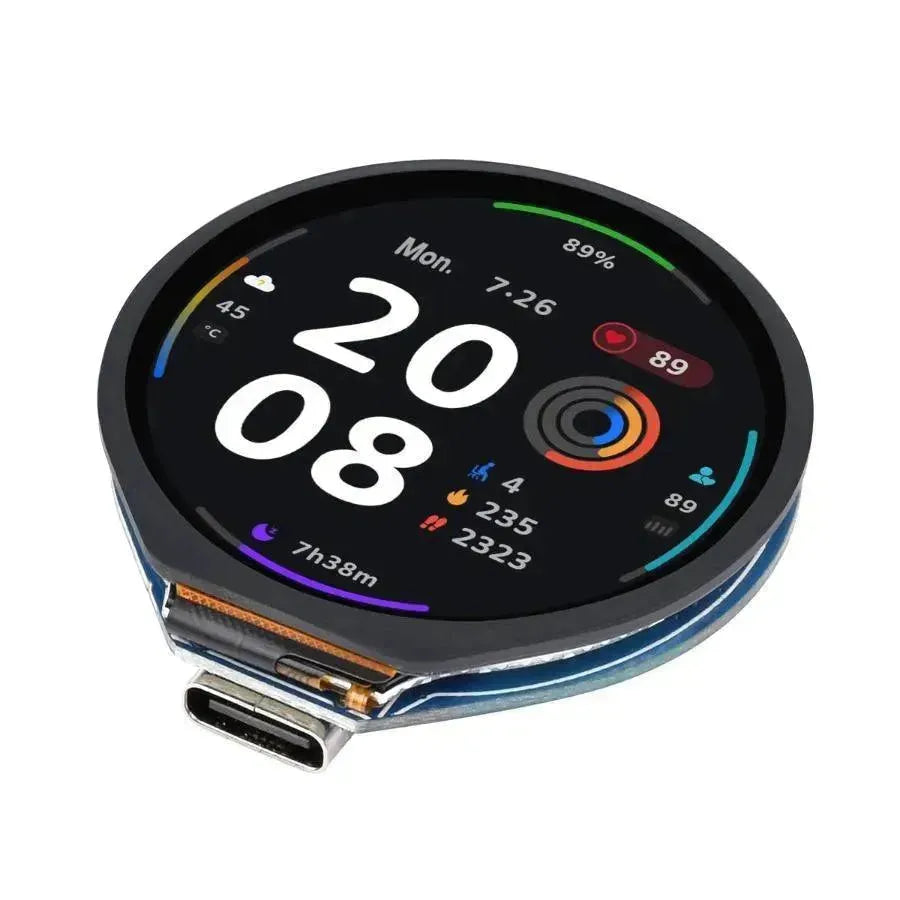
BaseUI unterstützt Geräte mit OLED-, E-Ink- und TFT-Bildschirmen und ermöglicht klare Statusansichten, Nachrichtenlisten und kartenfreundliche Koordinaten. Es funktioniert auf beliebten Meshtastic-Boards und benutzerdefinierten Builds und bietet konsistente Menüs für LoRa-Funkvoreinstellungen, GPS-Schalter, Kompass-Kalibrierung und Bluetooth-Steuerung.
Schnelle Installation und Firmware-Kompatibilität
Installieren Sie BaseUI über den Meshtastic Web Flasher und wählen Sie die Firmware 2.7+. Geräte, die auch die klassische Meshtastic UI unterstützen, können beide Schnittstellen ausführen; der Wechsel erfolgt im Menü jeder UI. Dieser Dual-UI-Ansatz ermöglicht den Vergleich von Layouts, die Optimierung der Akkulaufzeit und die Anpassung von Workflows für den Feldeinsatz.
Erstinstallation
-
Konfigurieren Sie Ihre LoRa-Region mit der offiziellen Anleitung: Legen Sie Ihre LoRa-Region fest. Korrekte regionale Einstellungen gewährleisten legale Frequenzen, zuverlässige Reichweite und stabile Mesh-Leistung.

Navigation und Eingabe mit einer Taste
BaseUI ist für minimale Steuerungen konzipiert – perfekt für kompakte Nodes. Es unterstützt CardKB, Drehgeber, Trackballs und Kippschalter, die schnellen Menüzugriff, Nachrichtenverfassung und Rollenwechsel auch mit Handschuhen oder bei schlechten Lichtverhältnissen ermöglichen.

Verhalten des On-Screen-Menüs
Halte die Benutzertaste gedrückt, um das Aktionsmenü zu öffnen. Kurz drücken wechselt zum nächsten Element; lang drücken wählt aus. Dieses konsistente Muster beschleunigt Vorgänge wie das Senden von Positionen, das Ändern von Funkvoreinstellungen und das Neustarten nach Konfigurationsupdates.

Aktionsmenüs
Die Verfügbarkeit von Funktionen hängt von der Hardware und Konfiguration des Geräts ab (GPS, Kompass, Tastatur, Bluetooth).
Zuhause
-
Schlafmodus — schalte das Display aus, um Energie zu sparen; wecke es mit der Benutzertaste auf. Ideal für lange LoRa-Sitzungen.
-
Position senden — sende manuell deine GPS-Koordinaten an das Mesh für schnellere Erkennung und Routentests.
-
Neue Voreingestellte Nachricht — sende vordefinierte Texte ohne die Telefon-App.
-
Neue Freitextnachricht — verfasse individuelle Nachrichten auf Geräten mit physischen oder virtuellen Tastaturen; ideal für Feldnotizen und Warnungen.
Nachricht
-
Neue Voreingestellte Nachricht — schnelle Nachrichten aus deiner vordefinierten Liste (vordefinierte Nachrichten).
-
Neue Freitextnachricht — tippe und sende Ad-hoc-Text direkt vom Knoten.
Knoten
-
Favorit hinzufügen — markiere einen Knoten als Favorit für schnellen Zugriff und priorisierte Weiterleitung in Basis-Setups.
-
Routenverfolgung — führe eine Routenverfolgung zu einem ausgewählten Knoten durch, um Hops, Abdeckung und Mesh-Gesundheit zu diagnostizieren.
-
Schlüsselüberprüfung — überprüfe Schlüssel zwischen zwei 2.7+ Knoten in unmittelbarer Nähe für sichere Nachrichtenübermittlung.
-
NodeDB zurücksetzen — lösche und baue die Knotendatenbank neu auf, um veraltete Einträge oder Topologieänderungen zu beheben.

Position
-
GPS-Umschaltung — aktiviere/deaktiviere das integrierte GPS, um Privatsphäre, Akkulaufzeit und Standortgenauigkeit auszubalancieren.
-
GPS-Format — wähle aus sieben Koordinatenformaten für Karten-Apps und Feldarbeitsabläufe.
-
Kompassrichtungen — wechsle zwischen Dynamisch, Fest oder Gefroren „N“ für Navigationsbildschirme und Peilprüfungen.
-
Kompass kalibrieren — führe eine 30-sekündige Kalibrierung durch, um die Richtungsstabilität zu verbessern.
LoRa
-
Geräterolle — wählen Sie Client, Client Stumm, Fundbüro oder Tracker, um Mesh-Verhalten und Batterienutzung zu optimieren.
-
Funkvoreinstellung — wählen Sie Voreinstellungen wie ShortTurbo oder LongFast, um Reichweite, Durchsatz und Airtime auszubalancieren.
-
Regionenauswahl — stellen Sie Ihre LoRa-Region ein, um lokale Vorschriften einzuhalten und Zuverlässigkeit zu maximieren.
System
-
Benachrichtigungen
-
Summer-Aktionen — wählen Sie, welche Ereignisse akustische Warnungen für Nachrichten, Status oder Fehler auslösen.
-
-
Bildschirmoptionen
-
Helligkeit — Niedrig, Mittel, Hoch für Akkusparen oder Tageslichtlesbarkeit.
-
Bildschirmfarbe — wählen Sie Anzeige-Themen für Sichtbarkeit und persönliche Vorlieben.
-
-
Bluetooth-Schalter — Bluetooth aktivieren/deaktivieren (Gerät wird neu gestartet), um sich mit mobilen Apps oder Zubehör zu koppeln.
-
Neustart/Herunterfahren — wenden Sie Konfigurationsänderungen durch Neustart oder Abschalten an; nützlich nach Funk- oder UI-Updates.
Uhr
-
Uhranzeige — wechseln Sie zwischen digitalen und analogen Zifferblättern für schnelle Zeitabfragen im Feld.
-
Zeitformat — 12-Stunden- (
13:50) oder 24-Stunden-Anzeige (13:50). -
Zeitzone — stellen Sie den korrekten Offset für Reisen, Expeditionen oder Multi-Region-Meshes ein.
Favoriten
-
Neue Voreingestellte Nachricht — vordefinierte Texte aus Ihren Favoriten senden (hier konfigurieren).
-
Neue Freitextnachricht — benutzerdefinierte Nachrichten an Favoritenknoten tippen und senden.
-
Trace Route — Führen Sie Routendiagnosen zum favorisierten Knoten durch, um Hop-Anzahl und Abdeckung zu prüfen.
-
Favorit entfernen — aus Favoriten löschen; bei Bedarf über eine beliebige Knotenauswahl wieder hinzufügen.