 openelab.de
 openelab.com





































































De Remote Hardware Module maakt het mogelijk om GPIO-pinnen op een externe node te lezen, schrijven en monitoren. Configuratie-optie: Ingeschakeld.
Opmerking: Voor firmwareversies boven 2.5.3 vereist deze module dat je je eigen firmware compileert en de -DMESHTASTIC_EXCLUDE_REMOTEHARDWARE=1 build-vlag uit platformio.ini verwijdert. Hoewel configuratie-opties voor deze module in clients kunnen verschijnen, worden GPIO-instellingen en uitlezingen momenteel alleen ondersteund via de Meshtastic Python CLI.
Configuratieparameters Remote Hardware
Zorg ervoor dat de module ingeschakeld is.
Beschikbaarheid van Remote Hardware Module in clients
Android
Alle configuratie-opties voor de Remote Hardware Module zijn beschikbaar in de Android-app. Open de Meshtastic-app en ga naar Instellingen > Remote Hardware.
Appel
Alle configuratie-opties voor de Remote Hardware Module zijn beschikbaar in de iOS-, iPadOS- en macOS-apps (versie en hoger) onder Instellingen > Moduleconfiguratie > Remote Hardware.
CLI
Alle configuratie-instellingen van de Remote Hardware Module kunnen worden beheerd via de Python CLI.
Web
Niet geïmplementeerd.
Bediening van Remote Hardware Module
Tip: Toegang tot GPIO-pinnen brengt inherente risico's met zich mee, omdat onjuiste instellingen je hardware kunnen beschadigen of vernietigen. Zorg ervoor dat je het schema van je specifieke apparaat volledig begrijpt voordat je verdergaat, aangezien geen garantie wordt gegeven. Gebruik deze functie op eigen risico.
Ondersteunde bewerkingen
Je kunt elke GPIO instellen, elke GPIO uitlezen en mesh-meldingen ontvangen wanneer een GPIO van status verandert. Let op dat snelle overgangen—zoals knopdrukken—niet gedetecteerd kunnen worden; voor die gebruikssituaties, raadpleeg de Detection Sensor-module. De resultaten van GPIO-uitlezingen, evenals meldingen van GPIO-statuswijzigingen, worden ook gepubliceerd via MQTT (indien ingeschakeld) in JSON-formaat (indien ingeschakeld).
Instellen
Je kunt de nieuwste Python-tools en bibliotheken installeren door pip3 install --upgrade meshtastic uit te voeren op Windows, Linux of OS-X. Raadpleeg de Python-sectie voor meer details.
Om ongeautoriseerde toegang te voorkomen, moet je eerst een GPIO kanaal aanmaken dat geauthenticeerde toegang tot deze functie biedt. Dit kanaal moet aan zowel de lokale als de externe nodes worden toegevoegd, en de module moet op beide apparaten ingeschakeld zijn.
De stappen met de Python commandoregeltool zijn als volgt:
-
Verbind het lokale apparaat via USB
-
Schakel de Remote Hardware-module in
| meshtastic --set remote_hardware.enabled true |
-
Maak een GPIO-kanaal aan:
| meshtastic --ch-add gpio |
-
Controleer of het kanaal is aangemaakt, kopieer vervolgens de lange “Volledige URL” die alle kanalen op het apparaat bevat.
| meshtastic --info |
-
Verbind het externe apparaat via USB, of krijg toegang via het mesh-netwerk met de remote admin-functie.
-
Schakel de Remote Hardware-module in op het externe apparaat.
| meshtastic --set remote_hardware.enabled true |
-
Configureer het externe apparaat om deel te nemen aan het GPIO kanaal dat je eerder hebt aangemaakt.
| meshtastic --seturl deurljedoorstap3hebtgekopieerd |
Beide apparaten zouden nu via het GPIO-kanaal moeten kunnen communiceren. Om dit te bevestigen, stuur je een tekstbericht van het ene apparaat naar het andere. Je kunt ook uitvoeren --nodes om ervoor te zorgen dat de tweede node wordt gedetecteerd.
Maskers
Een mask wordt gebruikt om aan te geven welke GPIO's moeten worden bestuurd. Voor GPIO 1 wordt bit 1 van het mask ingesteld (hexadecimaal 0x2); voor GPIO 2 wordt bit 2 van het mask ingesteld (0x4); enzovoort. Om het juiste mask voor de pin(s) die je wilt gebruiken te bepalen, kan het Python-programma (en de uitvoer ervan) hieronder nuttig zijn.
| >>> for i in range(1,45): ... print(f'GPIO:{i} mask:{hex(2**i)}') ... GPIO:1 masker:0x2 GPIO:2 masker:0x4 GPIO:3 masker:0x8 GPIO:4 masker:0x10 GPIO:5 masker:0x20 GPIO:6 masker:0x40 GPIO:7 masker:0x80 GPIO:8 masker:0x100 GPIO:9 masker:0x200 GPIO:10 masker:0x400 GPIO:11 masker:0x800 GPIO:12 masker:0x1000 GPIO:13 masker:0x2000 GPIO:14 masker:0x4000 GPIO:15 masker:0x8000 GPIO:16 masker:0x10000 GPIO:17 masker:0x20000 GPIO:18 masker:0x40000 GPIO:19 masker:0x80000 GPIO:20 masker:0x100000 GPIO:21 masker:0x200000 GPIO:22 masker:0x400000 GPIO:23 masker:0x800000 GPIO:24 masker:0x1000000 GPIO:25 masker:0x2000000 GPIO:26 masker:0x4000000 GPIO:27 masker:0x8000000 GPIO:28 masker:0x10000000 GPIO:29 masker:0x20000000 GPIO:30 masker:0x40000000 GPIO:31 masker:0x80000000 GPIO:32 masker:0x100000000 GPIO:33 masker:0x200000000 GPIO:34 masker:0x400000000 GPIO:35 masker:0x800000000 GPIO:36 masker:0x1000000000 GPIO:37 masker:0x2000000000 GPIO:38 masker:0x4000000000 GPIO:39 masker:0x8000000000 GPIO:40 masker:0x10000000000 GPIO:41 masker:0x20000000000 GPIO:42 masker:0x40000000000 GPIO:43 masker:0x80000000000 GPIO:44 masker:0x100000000000 |
GPIO's beheren via de Python CLI
Opmerking: Je kunt de GPIO's van je USB-verbonden node bedienen of monitoren door --dest in te stellen op het ID van de lokale node. In dit geval is geen GPIO-kanaal vereist.
Een GPIO schrijven
Voorbeeld: GPIO4 'aan' zetten
|
meshtastic --port /dev/ttyUSB0 --gpio-wrb 4 1 --dest 28979058 |
Een GPIO lezen
Voorbeeld: GPIO4 lezen
| meshtastic --port /dev/ttyUSB0 --gpio-rd 0x10 --dest 28979058 # Verbonden met radio # GPIO-masker 0x10 lezen van !28979058 # GPIO leesantwoord gpio_value=16 |
Opmerking: Als de mask en de gpio_value overeenkomen, dan is de waarde "aan". Als de gpio_value 0 is, dan is de waarde "uit".
GPIO-wijzigingen in de gaten houden
Voorbeeld: GPIO4 in de gaten houden op veranderingen
| meshtastic --port /dev/ttyUSB0 --gpio-watch 0x10 --dest 28979058 # Verbonden met radio # Toezicht op GPIO-masker 0x10 van !28979058 # Ontvangen RemoteHardware typ=GPIOS_CHANGED, gpio_value=16 # Ontvangen RemoteHardware typ=GPIOS_CHANGED, gpio_value=0 # Ontvangen RemoteHardware typ=GPIOS_CHANGED, gpio_value=16 # < druk op ctrl-c om te stoppen > |
GPIO-bewerkingstest
U kunt GPIO-bewerkingen direct uitvoeren vanuit uw eigen Python-code met behulp van de Meshtastic RemoteHardwareClient-klasse. Raadpleeg voor meer details de Python API-documentatie.
Om te bevestigen dat de GPIO-bewerkingen correct functioneren, kunt u een eenvoudige LED en weerstand aansluiten als test. Gebruik de meegeleverde tutorial als referentie.
Vereisten
-
2× Meshtastic-apparaten (één verbonden met een lokale computer, de ander gewoon van stroom voorzien en gebruikt voor de LED-verbinding)
-
2× draden (meestal zwart voor aarde en geel voor signaal, hoewel elke kleur gebruikt kan worden)
-
1× LED
-
1× 220 Ω weerstand (optioneel maar aanbevolen)
-
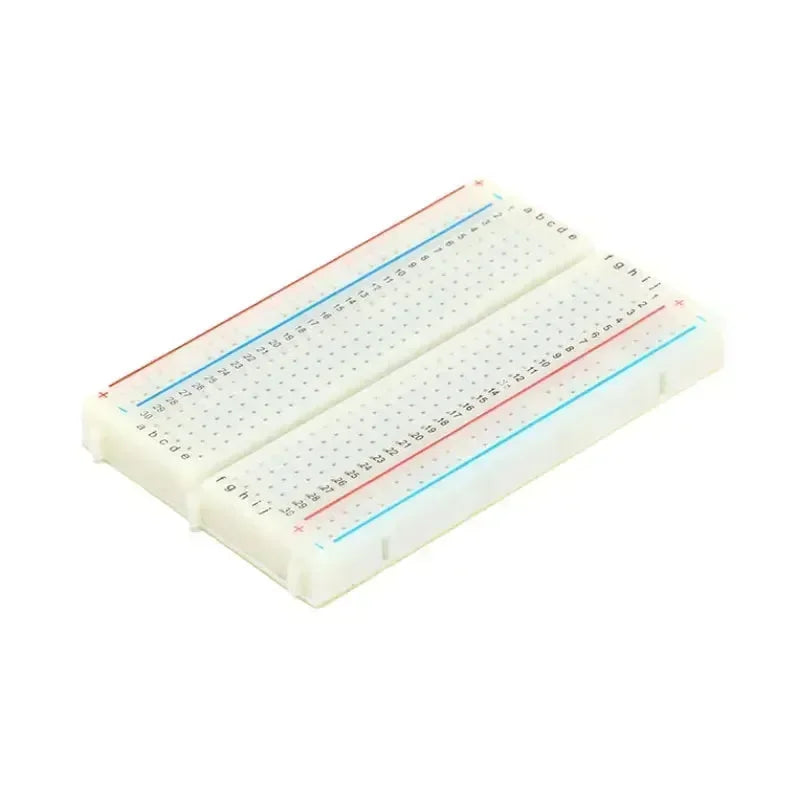
1× breadboard (optioneel)
Voorbereiding
-
Koppel het externe apparaat los van zijn stroombron (batterij of USB).
-
Bevestig de weerstand aan de langere (positieve) aansluiting van de LED, en verbind vervolgens de gele draad met het andere uiteinde van de weerstand.
-
Verbind het andere uiteinde van de gele draad met een veilige GPIO-pin (bijvoorbeeld, op TLoraV1 kunt u GPIO21 gebruiken).
-
Verbind de zwarte aarddraad van de aardingspin van het apparaat (bij TLoraV1 is dit de eindpin naast de RST-knop) met de kortere (negatieve) aansluiting van de LED.
-
Herstel de stroomvoorziening naar het apparaat.
Validatie
Standaard kan een pin ofwel “uit” of “aan” zijn (meestal “uit”). Raadpleeg de onderstaande stappen voor het uitvoeren van commando’s. Bijvoorbeeld, bij gebruik van GPIO21 is de bijbehorende maskwaarde 0x200000.