 openelab.de
 openelab.com







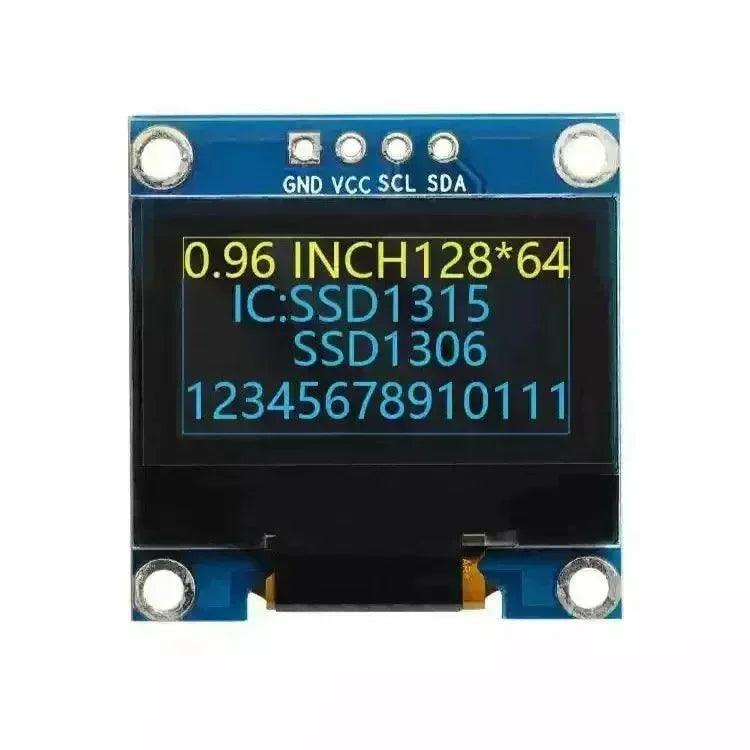



































Gebruikersconfiguratiewaarden
-
Volledige Naam Een aangepaste naam voor uw apparaat. Standaard wordt deze automatisch gegenereerd. Als u een gelicentieerde radioamateur bent en IsLicensed hebt ingeschakeld, moet u dit instellen op uw radioamateur roepletter.
-
Korte Naam Een aangepaste korte identificatie voor je apparaat. Dit wordt standaard automatisch gegenereerd.
-
Is Gelicentieerd (ham) Als je een gelicentieerde ham-operator bent en rekening hebt gehouden met de privileges en beperkingen die gelden voor het gebruik van Meshtastic onder een ham-licentie, kun je deze vlag inschakelen. Deze optie is standaard uitgeschakeld. Wanneer je IsLicensed inschakelt, bekijk dan ook de volgende gerelateerde configuraties: Gebruiker: LongName (Dit moet je roepnaam zijn) Kanaal: PSK (Dit moet leeg blijven om encryptie te verwijderen)
-
Is Onberijkbaar Geeft aan of het knooppunt directe berichten kan ontvangen. De standaardinstelling is False, behalve voor rollen die doorgaans geen monitoring van directe berichten vereisen: ROUTER, ROUTER_LATE, REPEATER, SENSOR, LOST_AND_FOUND, TRACKER en TAK_TRACKER.
Beschikbaarheid van gebruikersconfiguratieclient
Android
Alle gebruikersconfiguratie-opties zijn toegankelijk op Android.
-
Open de Meshtastic App.
-
Ga naar: Verticale Ellipsis (drie puntjes rechtsboven) > Radio Configuratie > Gebruiker.
Appel
Alle gebruikersconfiguratie-opties zijn toegankelijk op iOS, iPadOS en macOS door te navigeren naar Instellingen > Apparaatconfiguratie > Gebruiker.
CLI
Alle gebruikersconfiguratie-opties zijn toegankelijk in de Python CLI. Hieronder enkele voorbeeldopdrachten:
-
Stel de LongName-waarde in
| meshtastic --set-owner 'je knooppuntnaam' |
-
Stel de ShortName-waarde in
| meshtastic --set-owner-short 'NODE' |
-
Schakel Ham-modus in, stel naam in op licentie, schakel encryptie uit
| meshtastic --set-ham 'ROEPNAAM' |
Aangezien het apparaat na elke opdracht die via de CLI wordt verzonden opnieuw opstart, is het aan te raden om meerdere opdrachten samen te voegen tot één enkele opdracht wanneer je meerdere waarden in een configuratiesectie instelt. Bijvoorbeeld:
| meshtastic --set-owner 'je knooppuntnaam' --set-owner-short 'NODE' |
Web
Alle gebruikersconfiguratie-opties zijn te vinden in de Web UI.