 openelab.de
 openelab.com







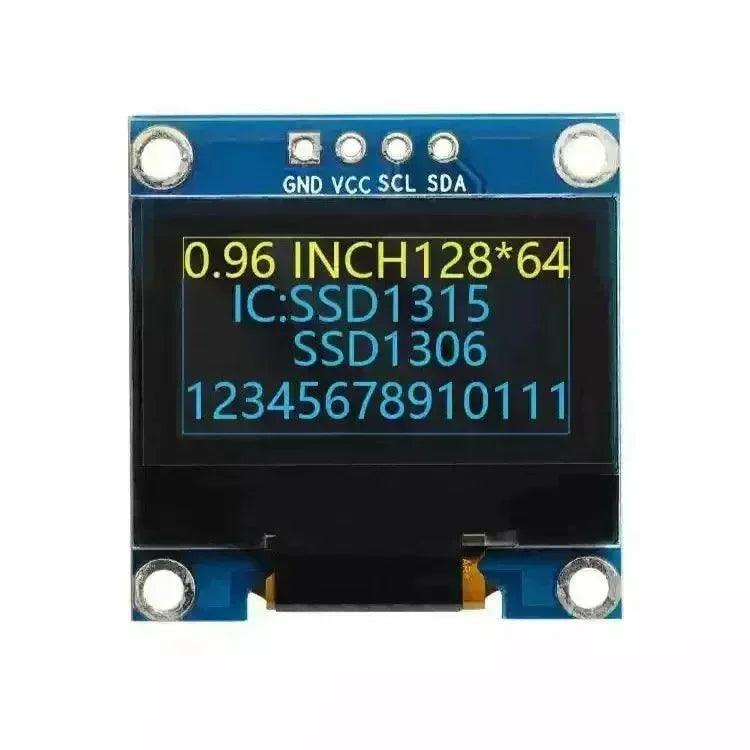

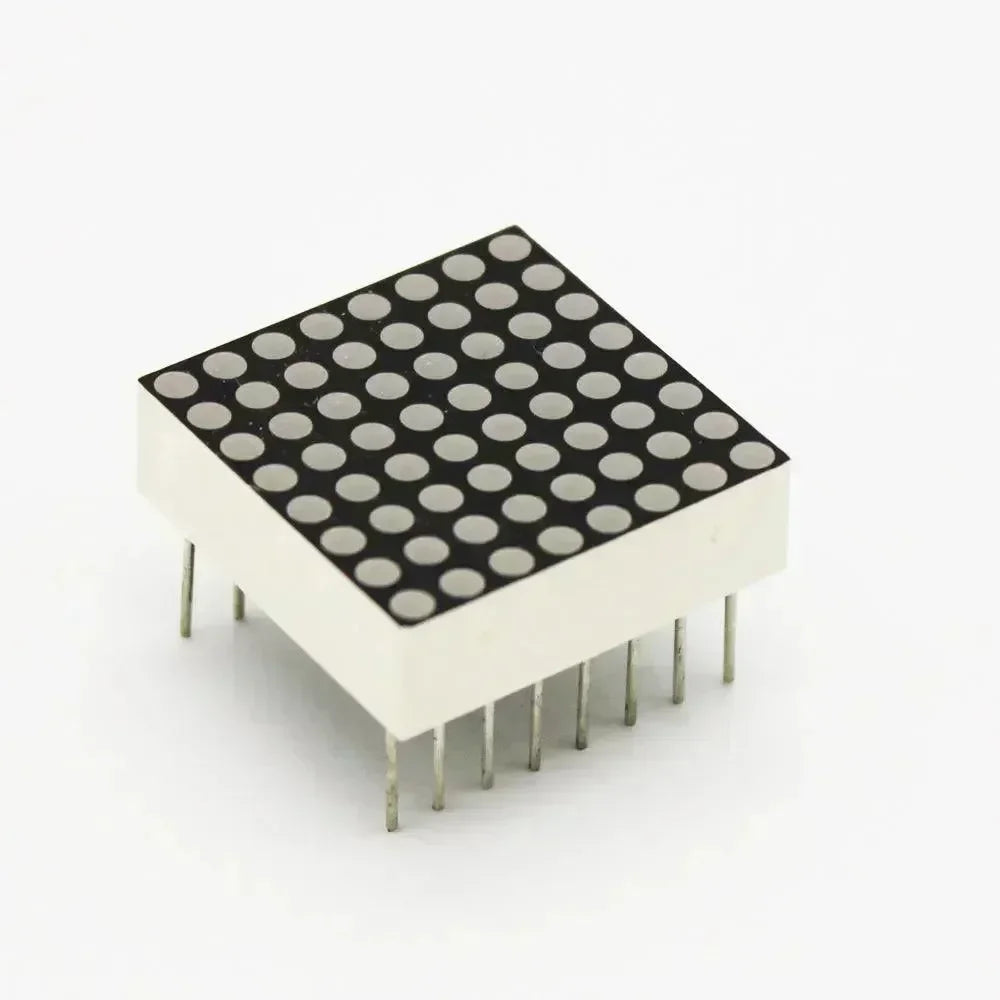


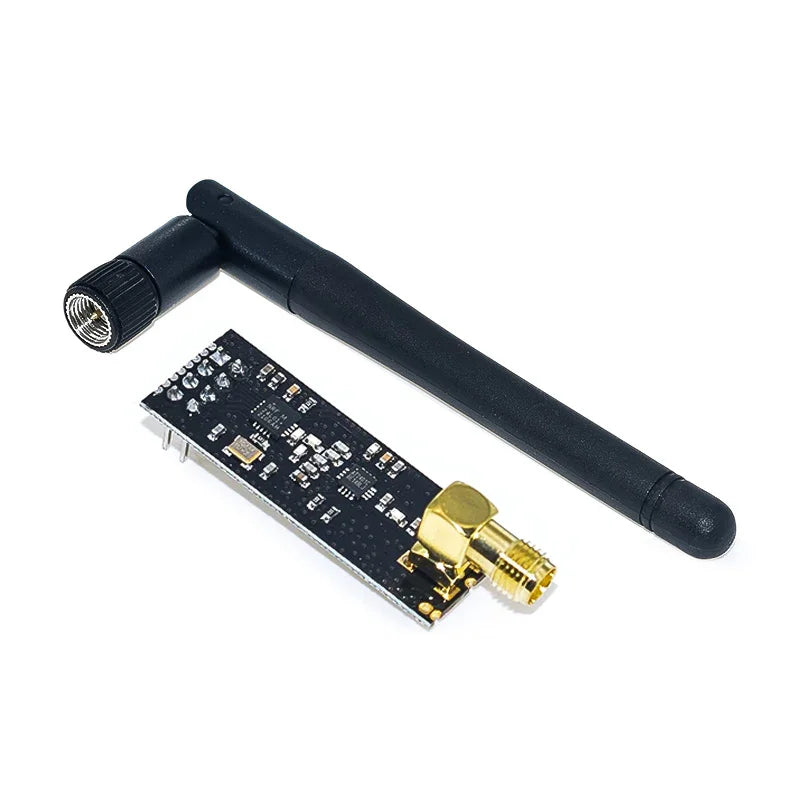
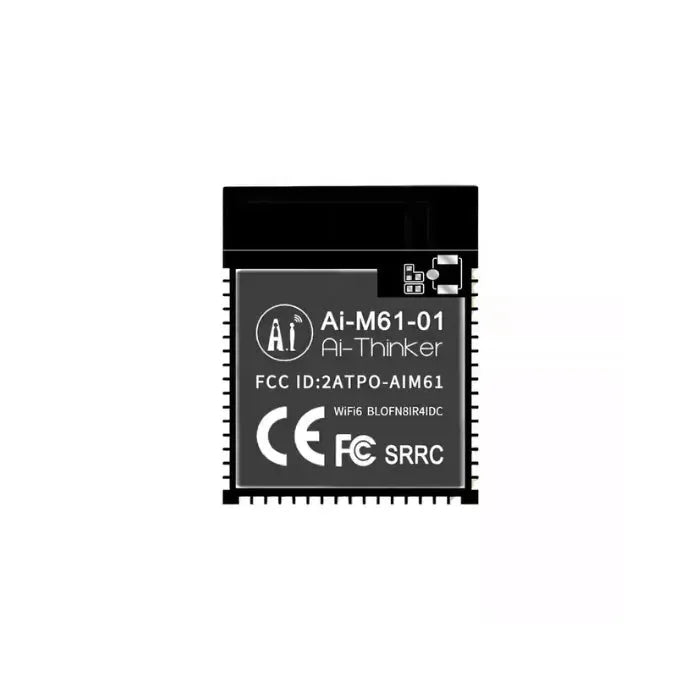























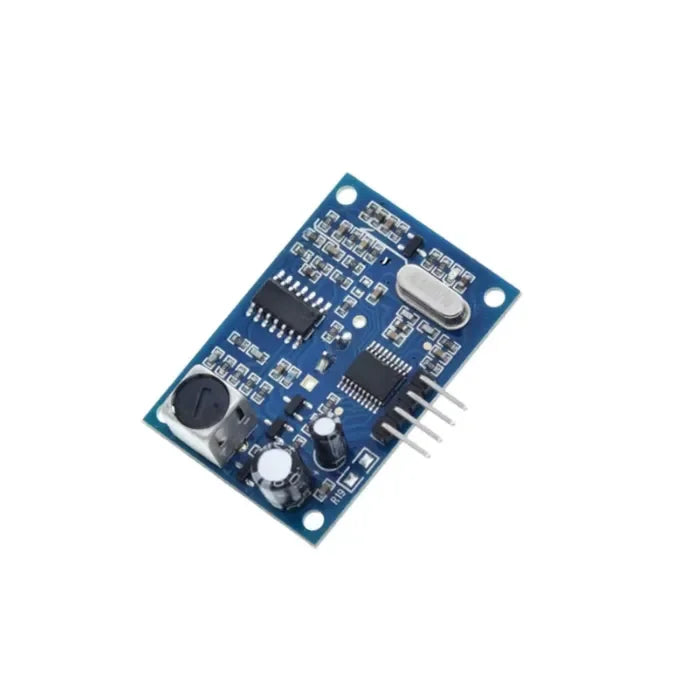


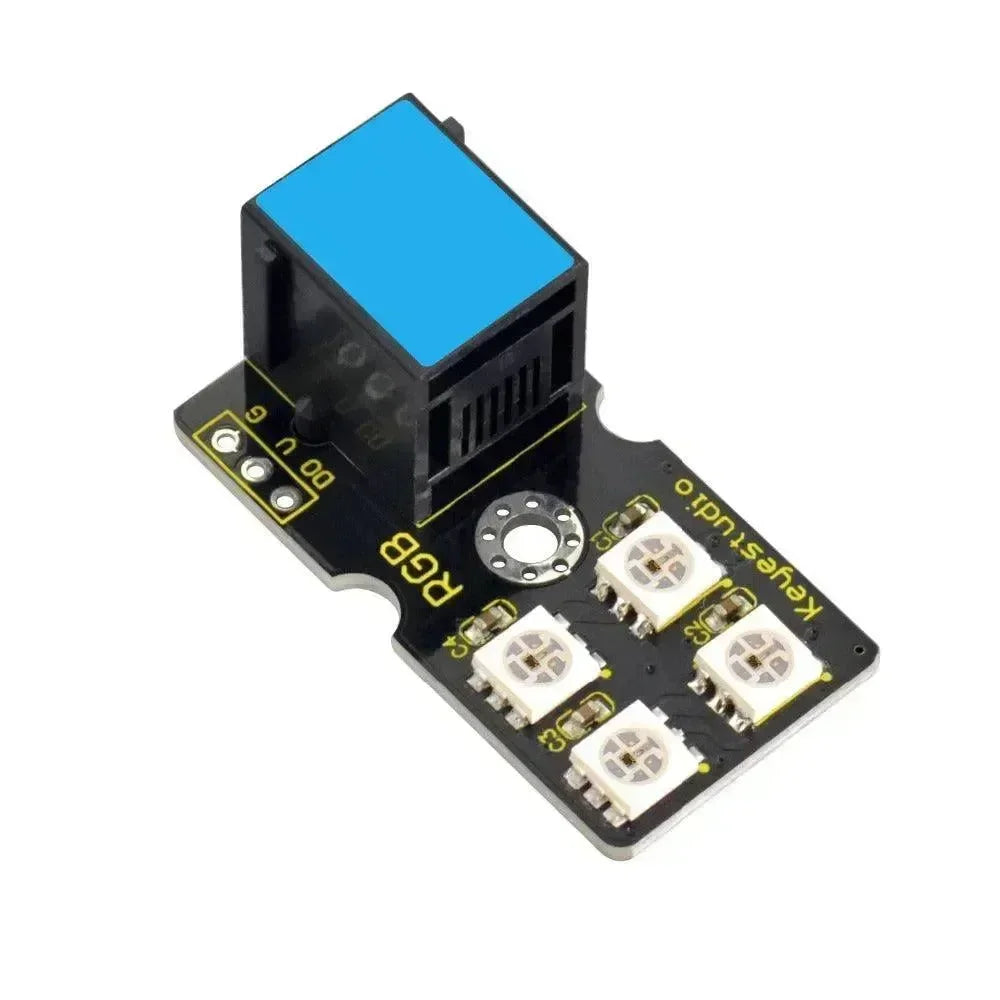
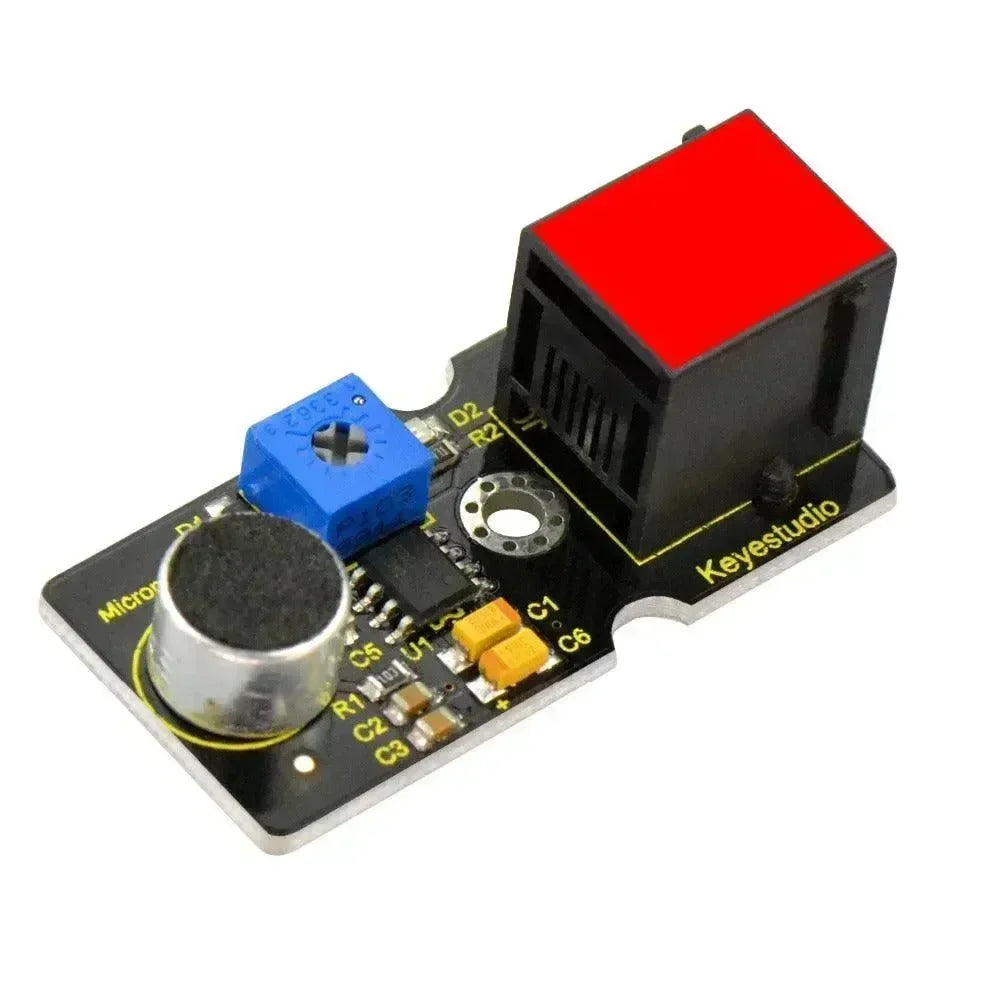


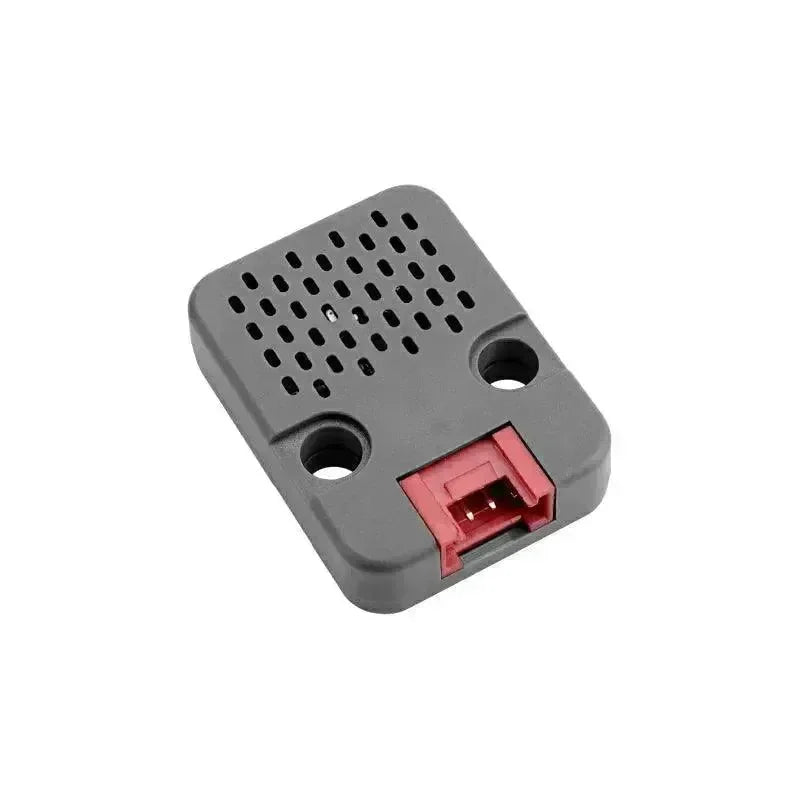





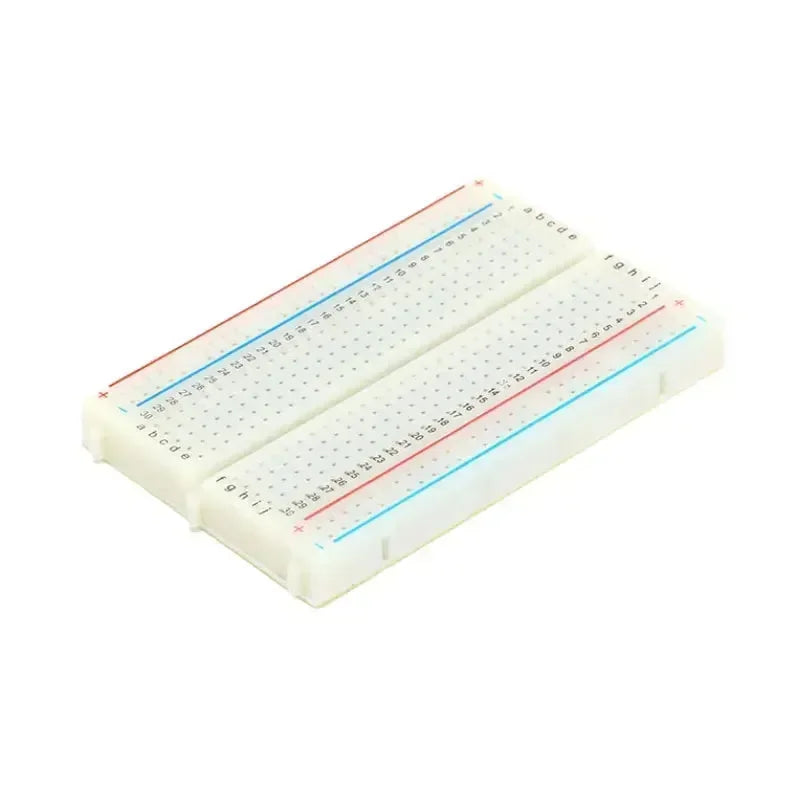
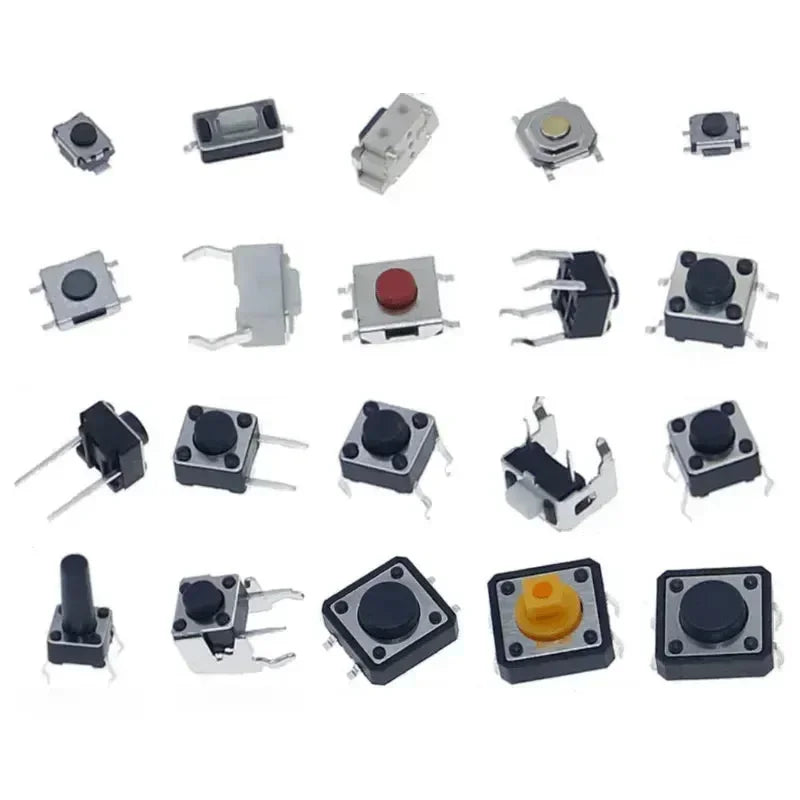

El Módulo de Mensajes Predefinidos permite enviar mensajes a la red mesh desde el dispositivo sin usar la aplicación del teléfono. Puede predefinir mensajes de texto para elegir.
Las opciones de configuración del módulo de mensajes predefinidos incluyen: Habilitado, Enviar Timbre, Mensajes, Fuente de Entrada, Codificador Rotatorio Habilitado, Codificador Arriba Abajo Habilitado, Pin A del Broker de Entrada, Pin B del Broker de Entrada, Pin de Presión del Broker de Entrada, Evento de Giro Horario del Broker de Entrada, Evento de Giro Antihorario del Broker de Entrada y Evento de Presión del Broker de Entrada. La configuración de Mensajes Predefinidos utiliza un mensaje de administrador para enviar un protobuf ConfigModule.CannedMessage.
Valores de Configuración del Módulo de Mensajes Predefinidos
-
Habilitado: Habilita el módulo de mensajes predefinidos.
-
Enviar Timbre: Envía un carácter de timbre con cada mensaje. El Módulo de Notificación Externa puede configurarse para emitir un pitido cuando llega un nuevo mensaje. Además, este módulo puede configurarse para pitar solo cuando un mensaje contiene el carácter de timbre.
-
Mensajes: La lista de mensajes predefinidos configurados por el usuario. Los mensajes deben estar separados por pipes |. El recuento total de bytes para la lista de mensajes puede ser hasta 200 bytes.
-
Fuente de Entrada: Fuentes de eventos de entrada aceptadas por el módulo de mensajes predefinidos.
| Valor | Descripción |
| _any | Predeterminado. Permite cualquier dispositivo de entrada periférico conectado al dispositivo. |
| rotEnc1 | Codificador Rotatorio Básico |
| upDownEnc1 | Codificador Arriba Abajo (úselo también para RAK14006 Codificador Rotatorio) |
| scanAndSelect | Botón pulsador único (pulsación corta y larga) |
| cardkb | M5 Stack CardKB (esto cubre RAK14004 Keymatrix) |
| serialkb | Teclado serial Chatter |
-
Codificador rotatorio habilitado: Habilita el codificador rotatorio predeterminado.
-
Codificador arriba/abajo habilitado: Habilita el codificador arriba/abajo.
-
Entrada Broker Pin A: Valor del pin GPIO (1-39) para el puerto A del codificador.
-
Entrada Broker Pin B: Valor del pin GPIO (1-39) para el puerto B del codificador.
-
Entrada Broker Pin Presionar: Valor del pin GPIO (1-39) para el puerto de presionar del codificador.
-
Entrada Evento de broker en sentido horario: Genera el evento rotatorio en sentido horario.
-
Entrada Evento de broker en sentido antihorario: Genera el evento rotatorio en sentido antihorario.
-
Entrada Evento de broker al presionar: Genera un evento de entrada al presionar de este tipo.
Cliente de configuración del módulo de mensajes predefinidos
Android
Las opciones de configuración de mensajes predefinidos están disponibles para Android.
-
Abre la App Meshtastic.
-
Navega a: Elipsis vertical (3 puntos arriba a la derecha) > Configuración de radio > Mensaje predefinido.
Apple
Todas las opciones de configuración del módulo de mensajes predefinidos están disponibles en iOS, iPadOS y macOS en Configuración > Configuración del módulo > Mensajes predefinidos.
CLI
Todas las opciones de configuración del módulo de mensajes predefinidos están disponibles en la CLI de Python.
| Configuración | Valores Aceptables | Predeterminado |
| canned_message.enabled | true, false | FALSO |
| canned_message.send_bell | true, false | FALSO |
| canned_message.allow_input_source | rotEnc1, _any, upDownEnc1, cardkb | _any |
| --set-canned-message | cadena | "" (separar usando tuberías) |
| canned_message.inputbroker_event_cw | InputEventChar | (no definido) |
| canned_message.inputbroker_event_ccw | InputEventChar | (no definido) |
| canned_message.inputbroker_event_press | InputEventChar | (no definido) |
| canned_message.inputbroker_pin_a | entero | (no definido) |
| canned_message.inputbroker_pin_b | entero | (no definido) |
| canned_message.inputbroker_pin_press | entero | (no definido) |
-
Habilitar/Deshabilitar el Módulo de Mensajes Predefinidos
| meshtastic --set canned_message.enabled true meshtastic --set canned_message.enabled false |
-
Habilitar/Deshabilitar el carácter de campana de envío
| meshtastic --set canned_message.send_bell true meshtastic --set canned_message.send_bell false |
-
Establecer Mensajes
| meshtastic --set-canned-message "¡Necesito un alpinista!|Llámame|Roger Roger|Mantén la calma|En camino |
-
Establecer Fuente de Entrada
| meshtastic --set canned_message.allow_input_source "_any" meshtastic --set canned_message.allow_input_source "rotEnc1" |
-
Activar/Desactivar rotary1
| meshtastic --set canned_message.rotary1_enabled 1 |
-
Activar/Desactivar Pin A del Codificador
| meshtastic --set canned_message.inputbroker_pin_a 17 meshtastic --set canned_message.inputbroker_pin_a 0 |
-
Activar/Desactivar Pin B del Codificador
| meshtastic --set canned_message.inputbroker_pin_b 39 meshtastic --set canned_message.inputbroker_pin_b 0 |
-
Activar/Desactivar Pulsación del Pin del Codificador
| meshtastic --set canned_message.inputbroker_pin_press 21 meshtastic --set canned_message.inputbroker_pin_press 0 |
-
Establecer/Desestablecer Evento CW del Broker de Entrada
| meshtastic --set canned_message.inputbroker_event_cw UP meshtastic --set canned_message.inputbroker_event_cw "" |
-
Establecer/Desestablecer Evento CCW del Broker de Entrada
| meshtastic --set canned_message.inputbroker_event_ccw DOWN meshtastic --set canned_message.inputbroker_event_ccw "" |
-
Establecer/Desestablecer Evento de Pulsación del Broker de Entrada
| meshtastic --set canned_message.inputbroker_event_press SELECT meshtastic --set canned_message.inputbroker_event_press "" |
NOTA: Dado que el dispositivo se reiniciará después de enviar cada comando vía CLI, se recomienda encadenar los comandos juntos como uno solo al establecer múltiples valores en una sección de configuración. Por ejemplo:
| meshtastic --set canned_message.enabled true --set canned_message.send_bell true |
Web
Todas las opciones de configuración del módulo de mensajes predefinidos están disponibles en la interfaz web.
Hardware
Para navegar por los mensajes y seleccionar uno, necesitará algún hardware conectado a su dispositivo. Actualmente, el módulo está probado con un codificador rotatorio genérico, una lógica de 3 botones arriba/abajo/seleccionar y varios teclados I2C. Se agregarán métodos de entrada adicionales en el futuro.
Matriz de teclas I2C
Esto ha sido probado con el Teclado RAK14004. Una pulsación de tecla enviará inmediatamente el mensaje adjunto al número de botón respectivo. Los botones están numerados de arriba a la izquierda a abajo a la derecha en los paneles de teclas. Por lo tanto, presionar el botón superior izquierdo enviará el primer mensaje, el segundo botón enviará el segundo mensaje, y así sucesivamente.
Advertencia: La matriz de teclas 3x4 del RAK carece de la 4ª fila de botones durante el escaneo, por lo que debe omitir cada 4º espacio de mensaje. El botón 1 envía el mensaje 1, y el botón 4 enviará el mensaje 5. Por ejemplo: 1|2|3||5|6|7||9|10|11||13|14|15 — los espacios 4, 8 y 12 no se pueden usar.
CardKB
El CardKB es totalmente compatible con el modo de texto libre y el modo de selección. Use ARRIBA/ABAJO/ENTER para elegir un mensaje predefinido y enviarlo. Para un mensaje de texto libre, simplemente escríbalo y presione ENTER para enviarlo.
Si prefiere no transmitir su mensaje de texto libre, puede usar el CardKB para enviarlo a un nodo específico. Simplemente presione TAB y seleccione el nodo objetivo con las teclas IZQUIERDA/DERECHA. El mensaje se enviará al nodo con el nombre y número de nodo coincidentes. El nodo objetivo se recordará para su próximo mensaje.
Codificador rotatorio RAK y 3 botones arriba/abajo
Simplemente use ARRIBA/ABAJO/ENTER para seleccionar un mensaje predefinido y enviarlo.
Escanear y seleccionar
Usa un solo pulsador para seleccionar y enviar mensajes predefinidos.
Configuración
-
Conecta un pulsador normalmente abierto entre tierra y un pin GPIO de tu elección.
-
Configura el módulo de mensajes predefinidos. 1. Establece Fuente de Entrada a scanAndSelect. 2. Establece Pin de Pulsación del Broker de Entrada a tu GPIO elegido. 3. Define una lista de mensajes predefinidos.
Uso
-
Pulsación corta: Desplázate por los mensajes.
-
Pulsación larga: Envía el mensaje actualmente resaltado a tu canal principal.
Codificador rotatorio
Meshtastic soporta codificadores rotatorios cableados como dispositivos de entrada.
Necesitarás un codificador rotatorio genérico. Los tipos listados abajo tienen cinco patas, con dos dedicadas a una acción de "pulsar", pero otros tipos probablemente también funcionen. También puedes usar una versión de tres patas, donde la acción de "pulsar" debe conectarse desde un interruptor independiente.
Conecta tu codificador rotatorio de la siguiente manera: el codificador rotatorio tiene dos filas de patas. Una fila contiene dos patas, mientras que la otra contiene tres patas. Vista desde el lado inferior:
| B o --- o PRESS GND o | | A o --- o GND |
Las dos patas son para detectar la acción de pulsar (o presionar). Conecta una de las dos patas a GROUND y la otra a un pin GPIO (no importa cuál va dónde). Nos referiremos a estos puertos conectados como 'PRESS'.
Las tres patas son para detectar la acción de rotación. Conecta la pata del medio a GROUND y las de los lados a los pines GPIO. Etiquetaremos estos puertos como 'A' y 'B', según el esquema a continuación.
| A --|| GND --||]======== B --|| |
Pines GPIO recomendados para conectar un codificador rotatorio:
TTGO LoRa V1:
-
A - GPIO-22
-
B - GPIO-23
-
PRESIONAR - GPIO-21
Hay un diseño de referencia para una carcasa 3D que utiliza el codificador rotatorio para TTGO LoRa V1: Carcasa para TTGO-ESP32-LORA-OLED-v1.0 con codificador rotatorio.
Ejemplos
Conecta un dispositivo periférico compatible. Toma nota de los números GPIO que uses, ya que serán necesarios en el siguiente paso.
Nota: Reemplaza cada GPIO (x3) abajo con los números GPIO de tu configuración de hardware.
Aquí está el Módulo de Mensajes Predefinidos - Configuraciones Requeridas del Módulo de Codificador Rotatorio.
| meshtastic --set canned_message.inputbroker_pin_a GPIO meshtastic --set canned_message.inputbroker_pin_b GPIO meshtastic --set canned_message.inputbroker_pin_press GPIO meshtastic --set canned_message.inputbroker_event_cw UP meshtastic --set canned_message.inputbroker_event_ccw DOWN meshtastic --set canned_message.inputbroker_event_press SELECT meshtastic --set canned_message.rotary1_enabled True |
¡Eso es todo! Con un codificador rotatorio funcionando y habilitado, estás listo para comenzar a configurar el Módulo de Mensajes Predefinidos.